Smart diagram generation for more template diagrams
When you create a new diagram with the draw.io web editor, you can now choose to use our new smart diagram generator instead of one of our existing templates. Describe your diagram in a text phrase, and the tool will generate a diagram based on what it parses.
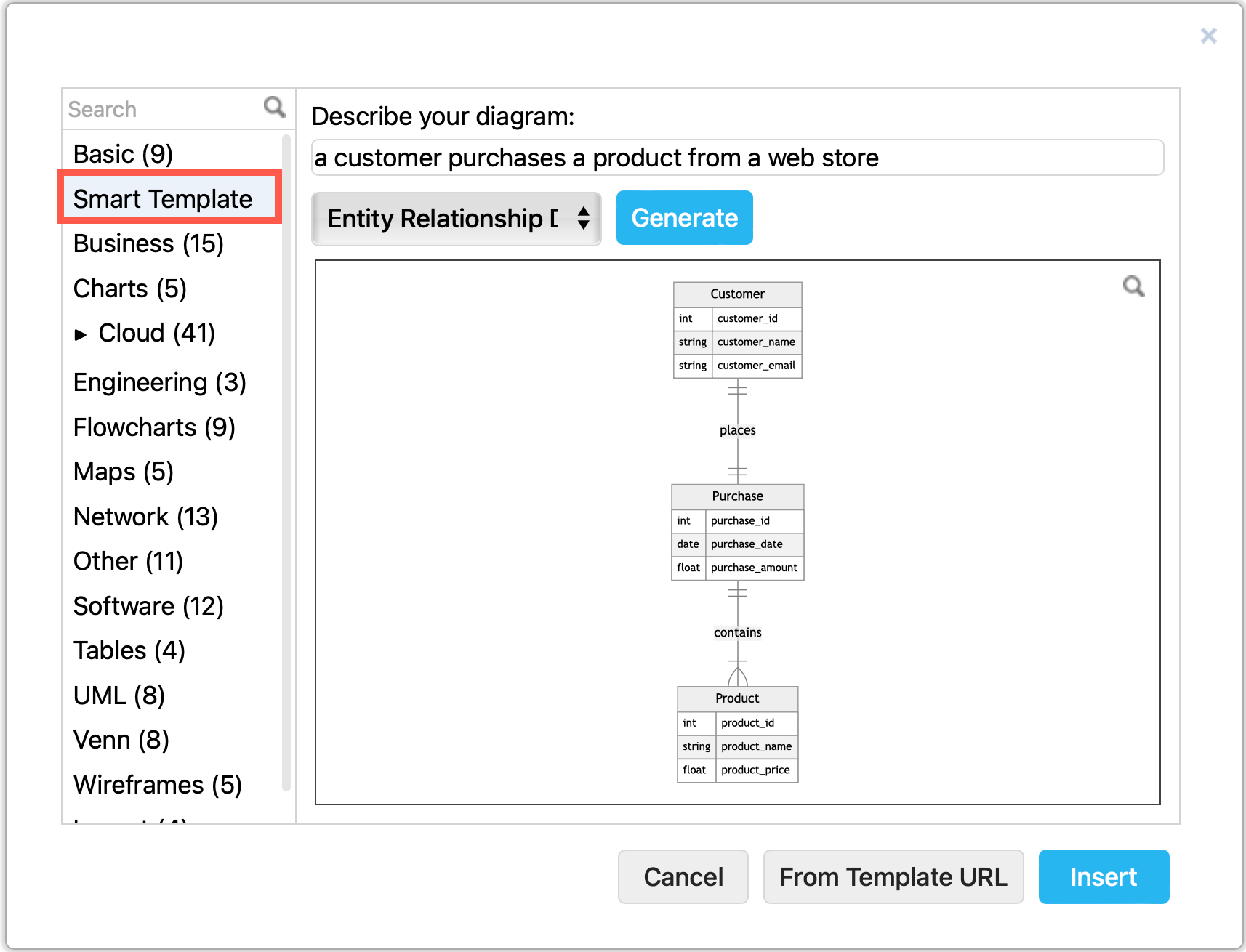
As these generated diagrams have not been vetted by a human, there are no guarantees it will useful as a template for your particular diagram. But the generated diagram can serve as inspiration, or a starting point from which you can draw the diagram you actually need.
Tip: You can generate endless variations of a diagram from the same phrase.
Generate a template diagram in draw.io
- Create a new diagram - go to our online diagram editor - or click on
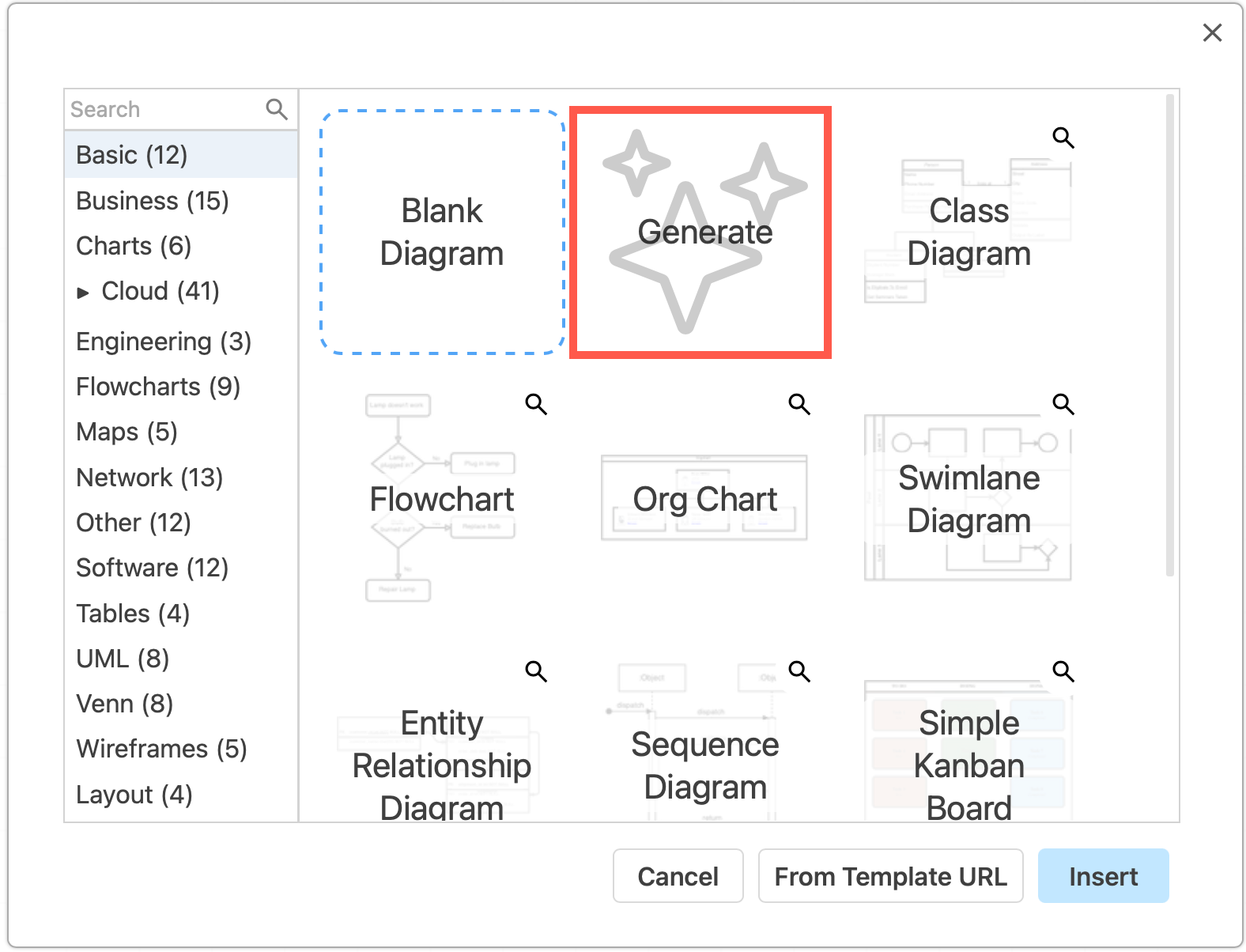
+in the toolbar and select Template to insert a generated diagram. - Click on the Generate box in the template library.
- Enter a basic description of your diagram in the text field, and press
Enteror click OK.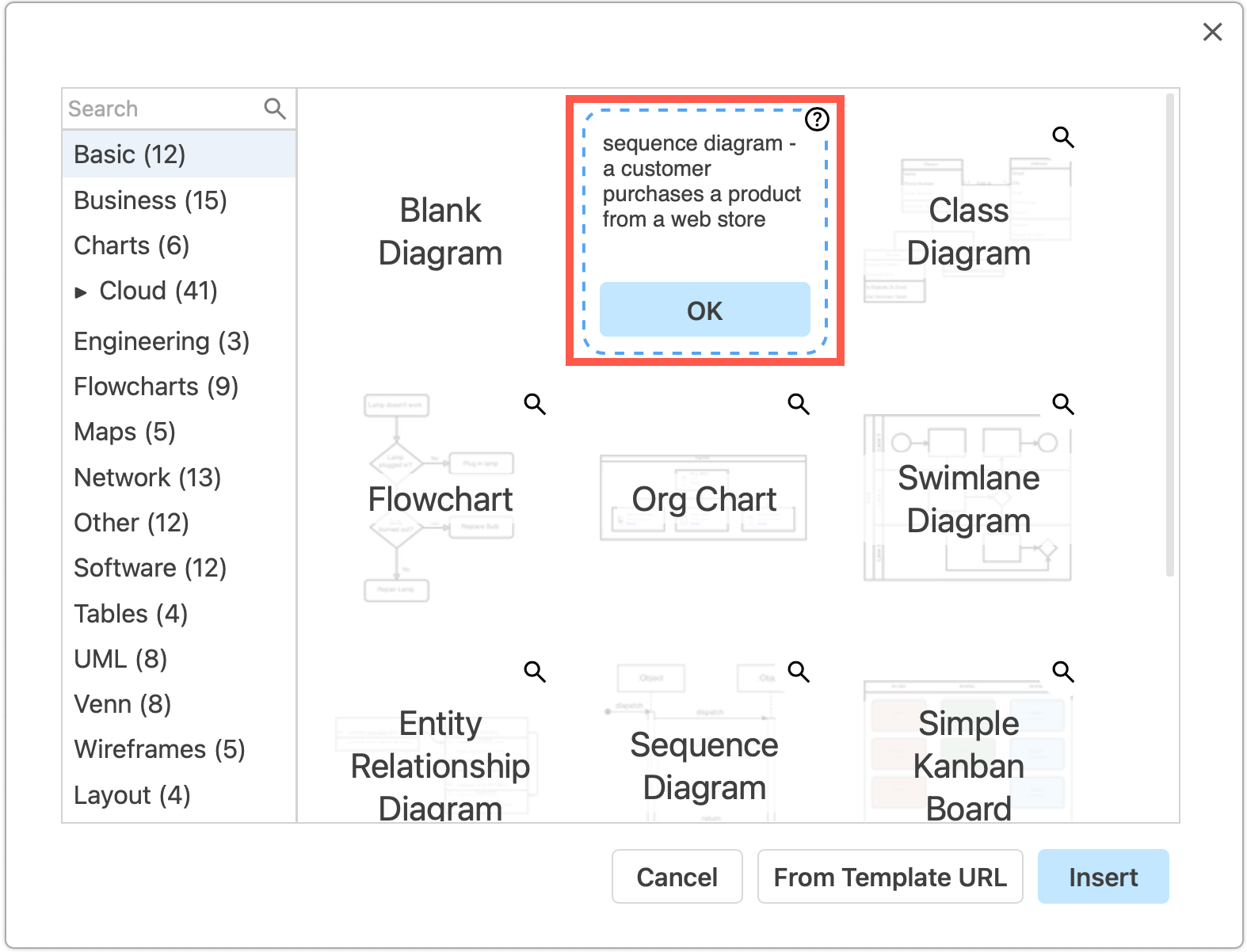
- Click Insert or Create to add it to the drawing canvas.
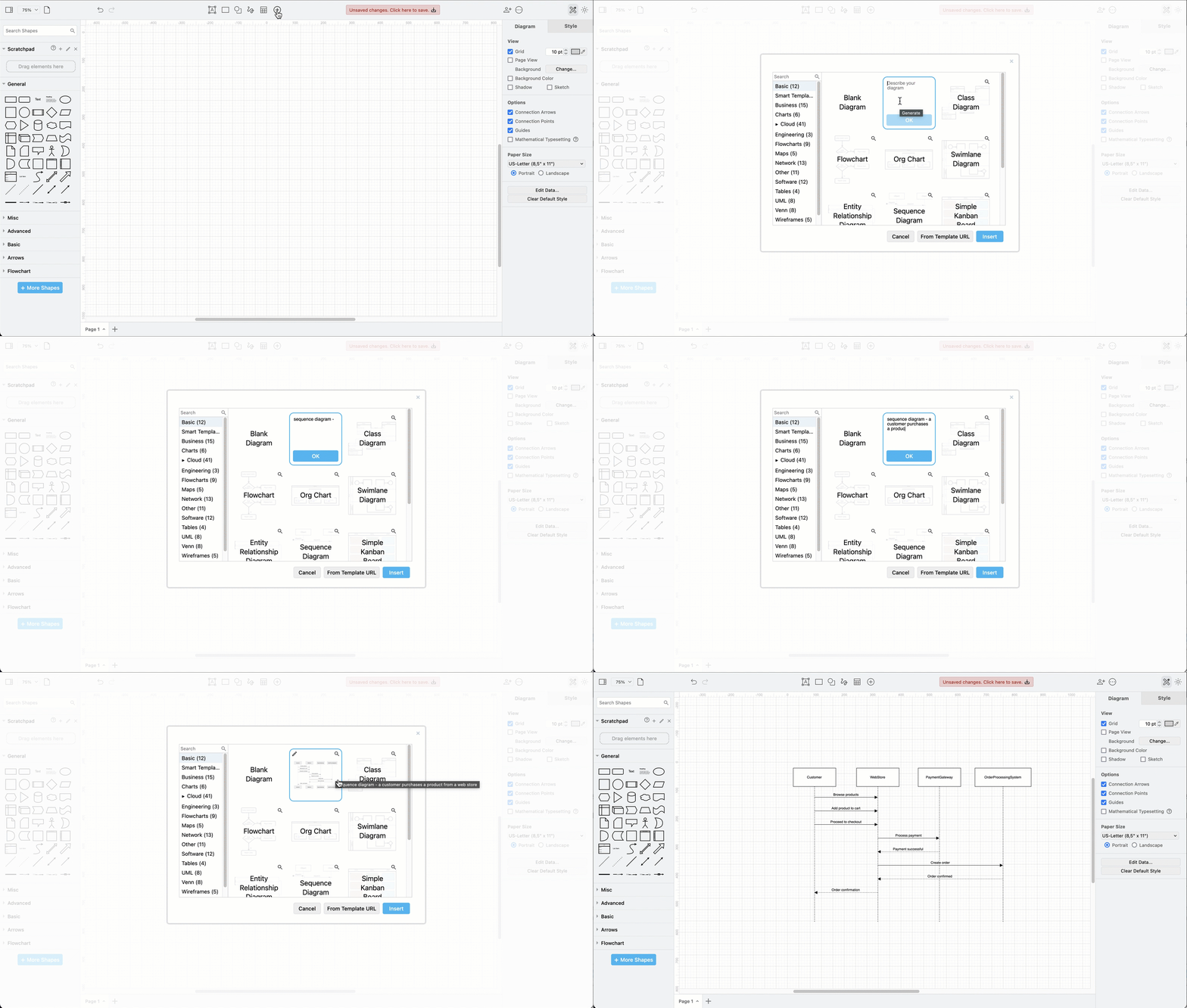
Make sure you write what type of diagram you want to generate at the start of the prompt. In this example, the prompt was:
sequence diagram - a customer purchases a product from a web store
You can also generate a diagram via the menu and the toolbar:
-
Use the shape search field above the Scratchpad - type in your prompt and select Generate.
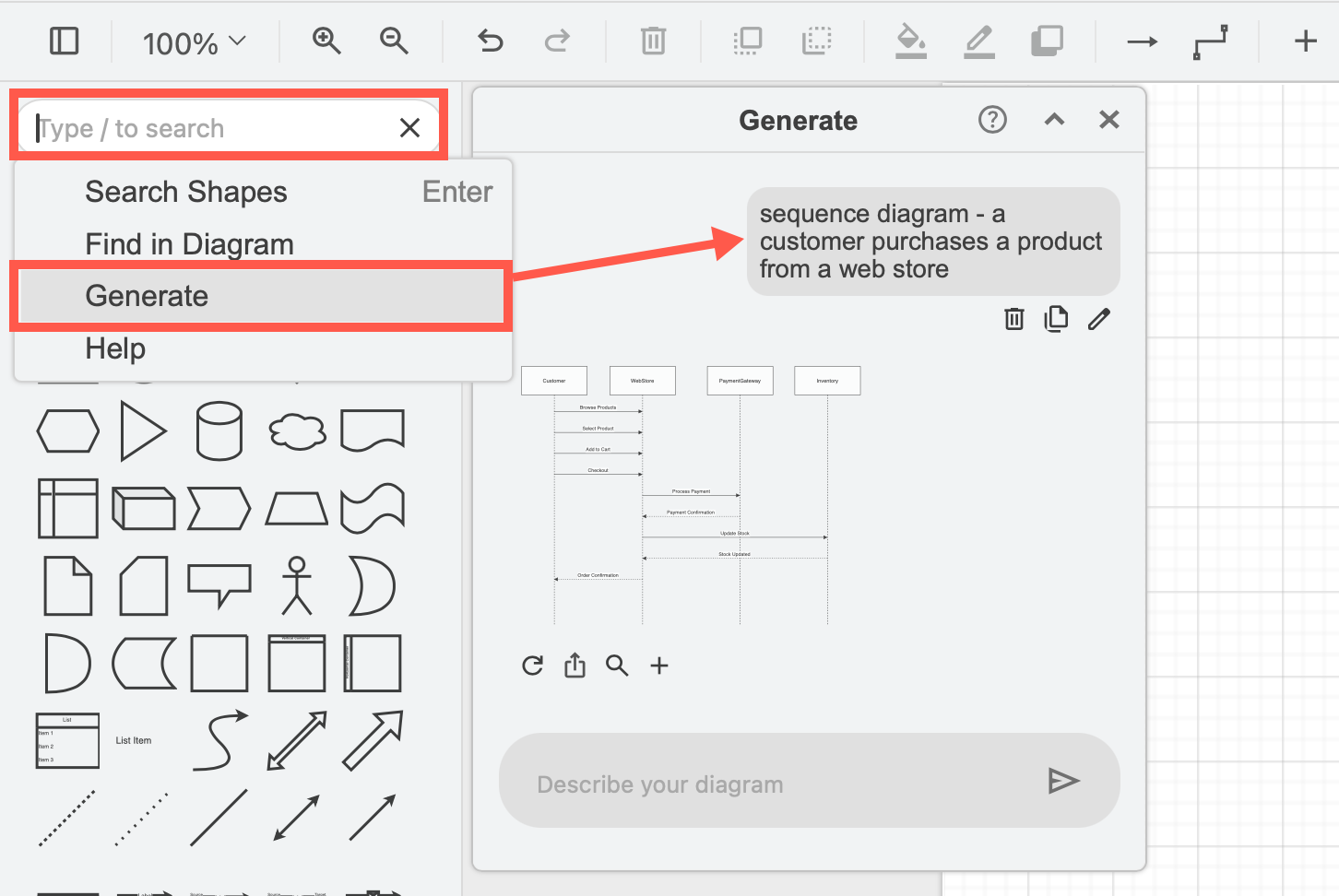
-
Open the generate dialog via Arrange > Insert > Generate in the menu, or click on the sparkle tool, and then type in your prompt there.
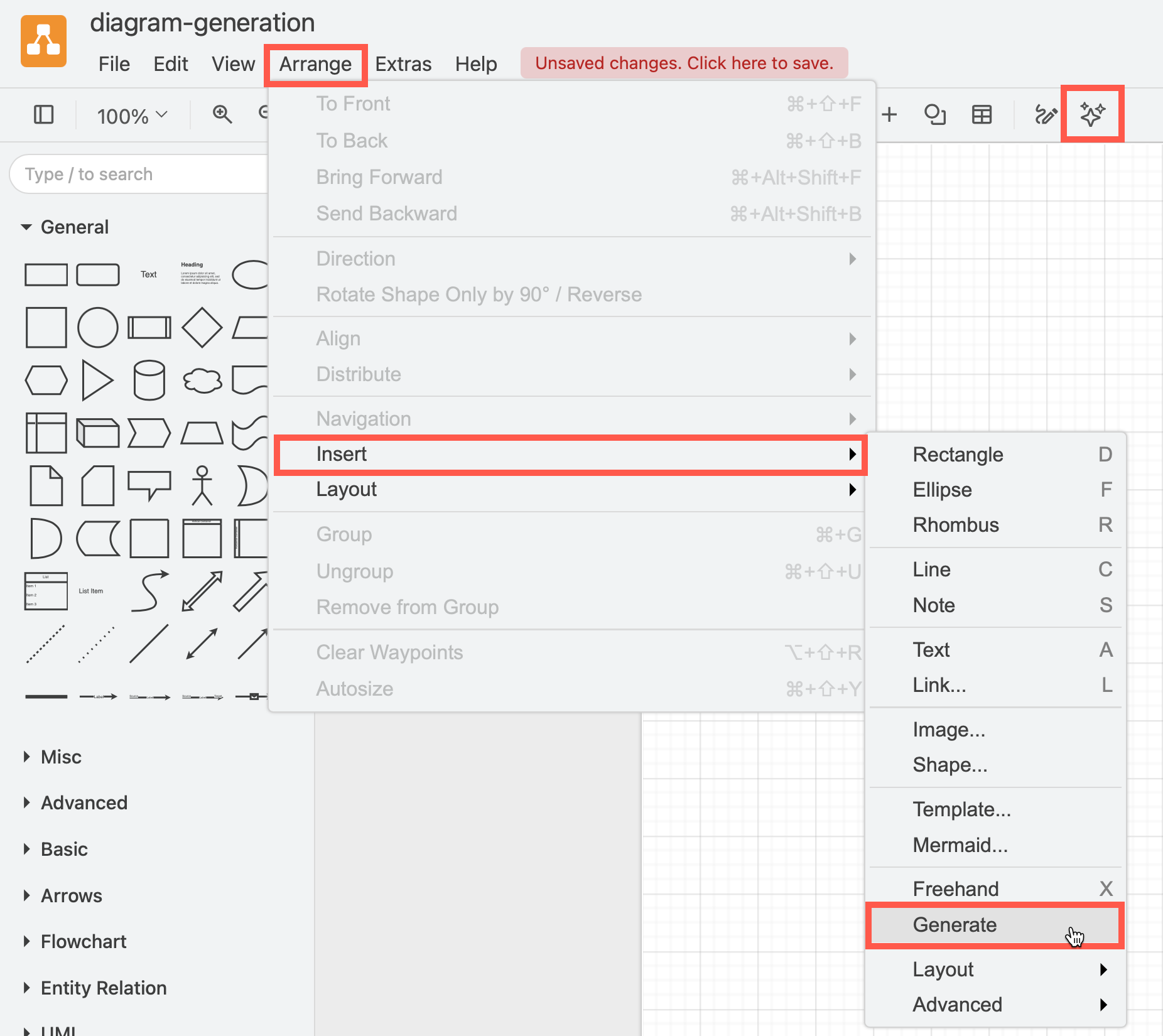
Tip: Hover over the generated diagram or click on the magnifying glass in the top right of the template preview or below the generated diagram to see a larger version before adding it to the drawing canvas.
You can now edit, add to, delete, and style the shapes and connectors in the generated diagram.
Different types of generated diagrams
Here are some different types of diagrams generated from the phrase “a customer purchases a product from a web store”.
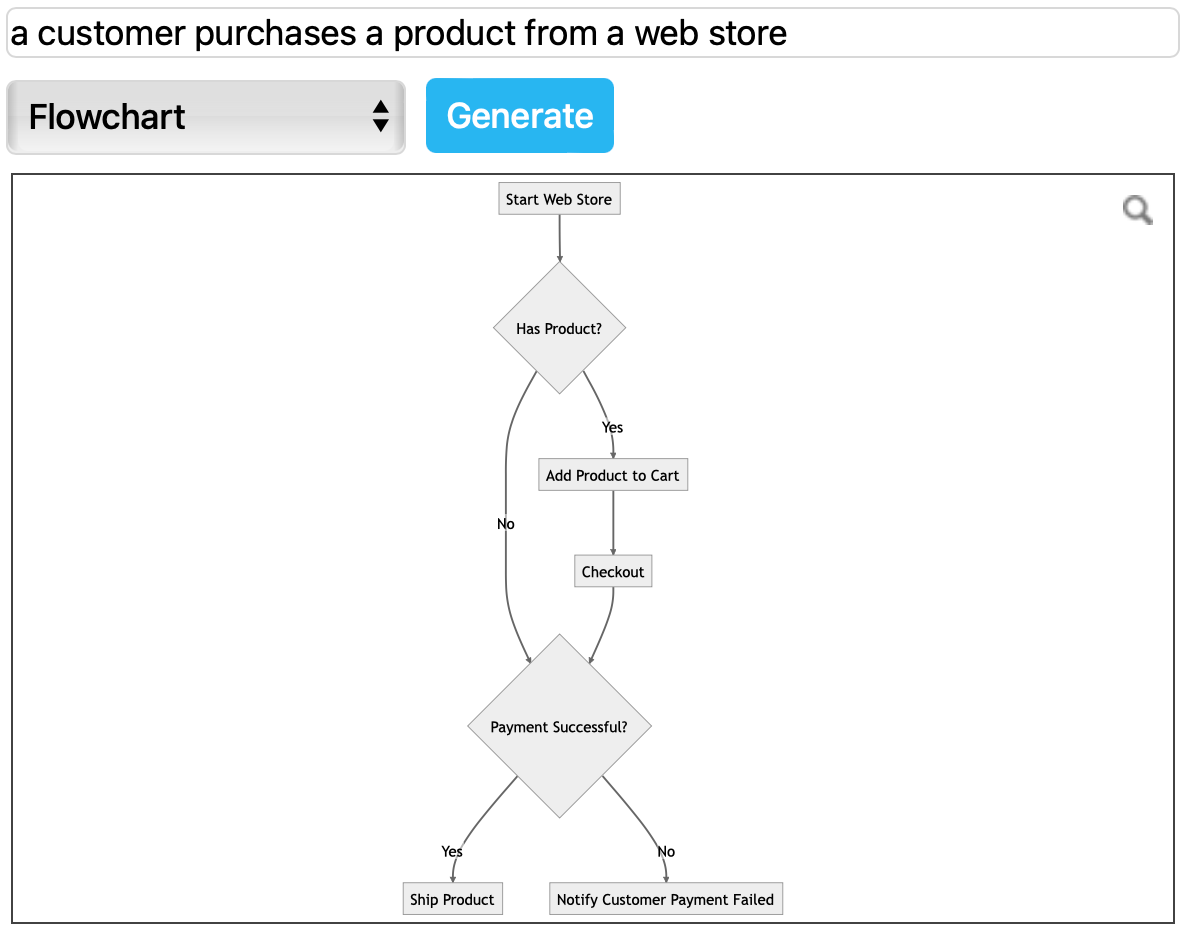
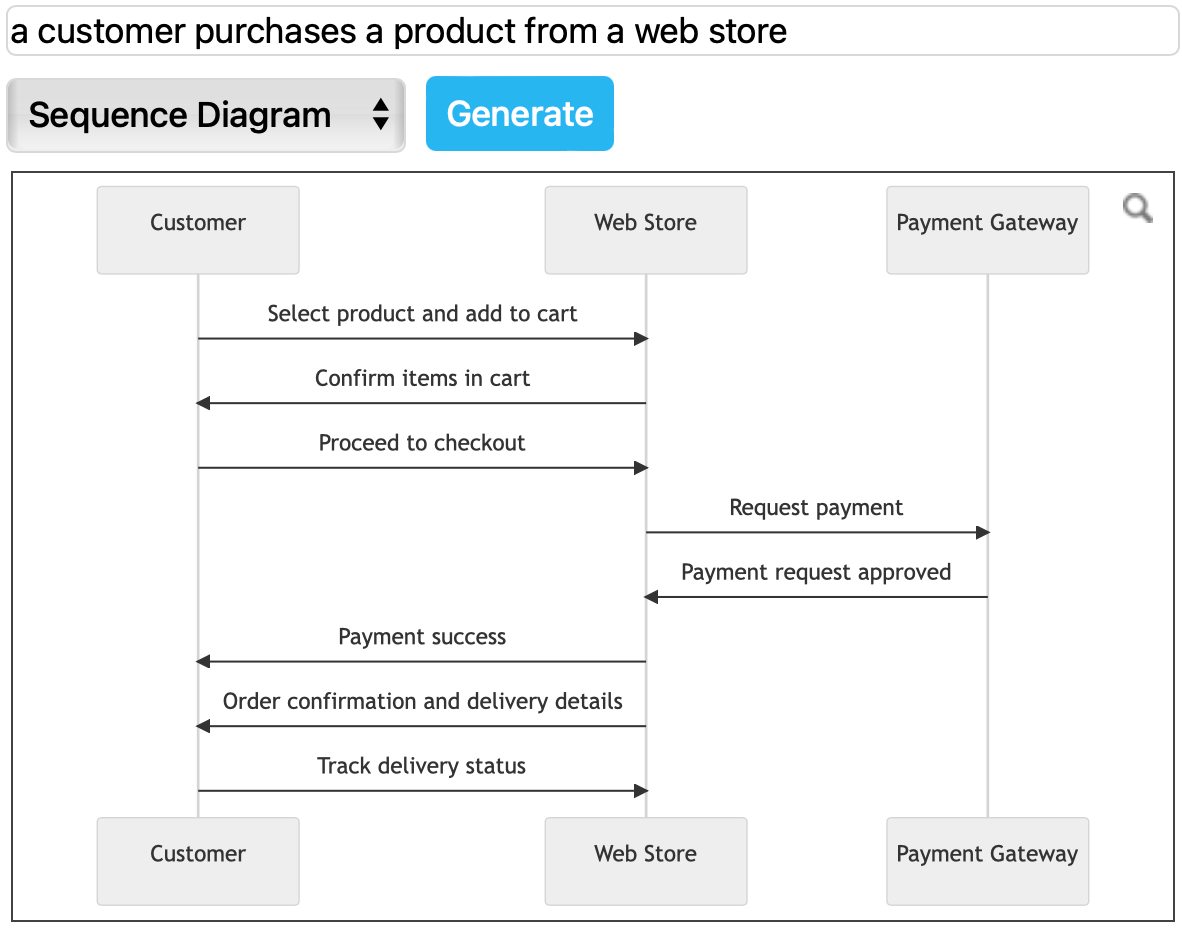
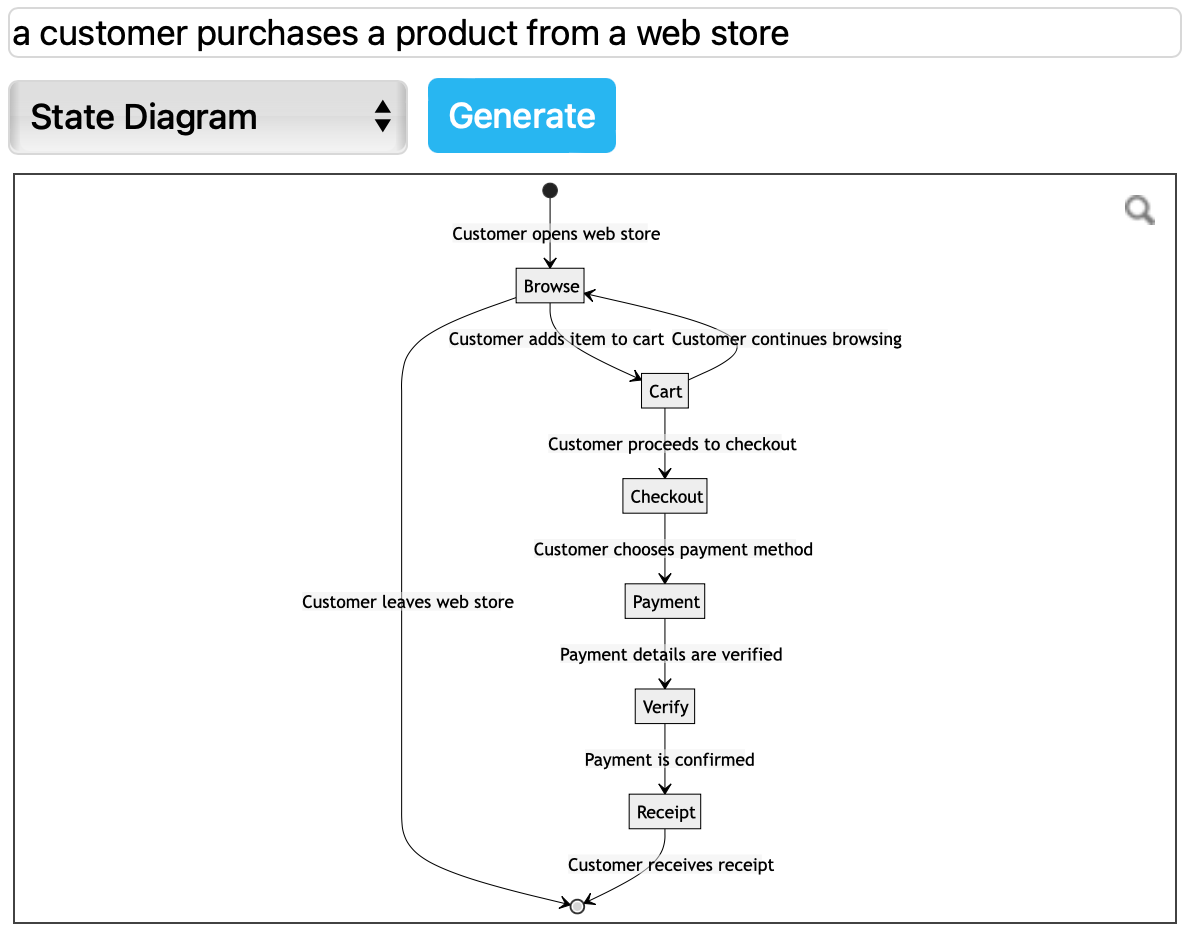
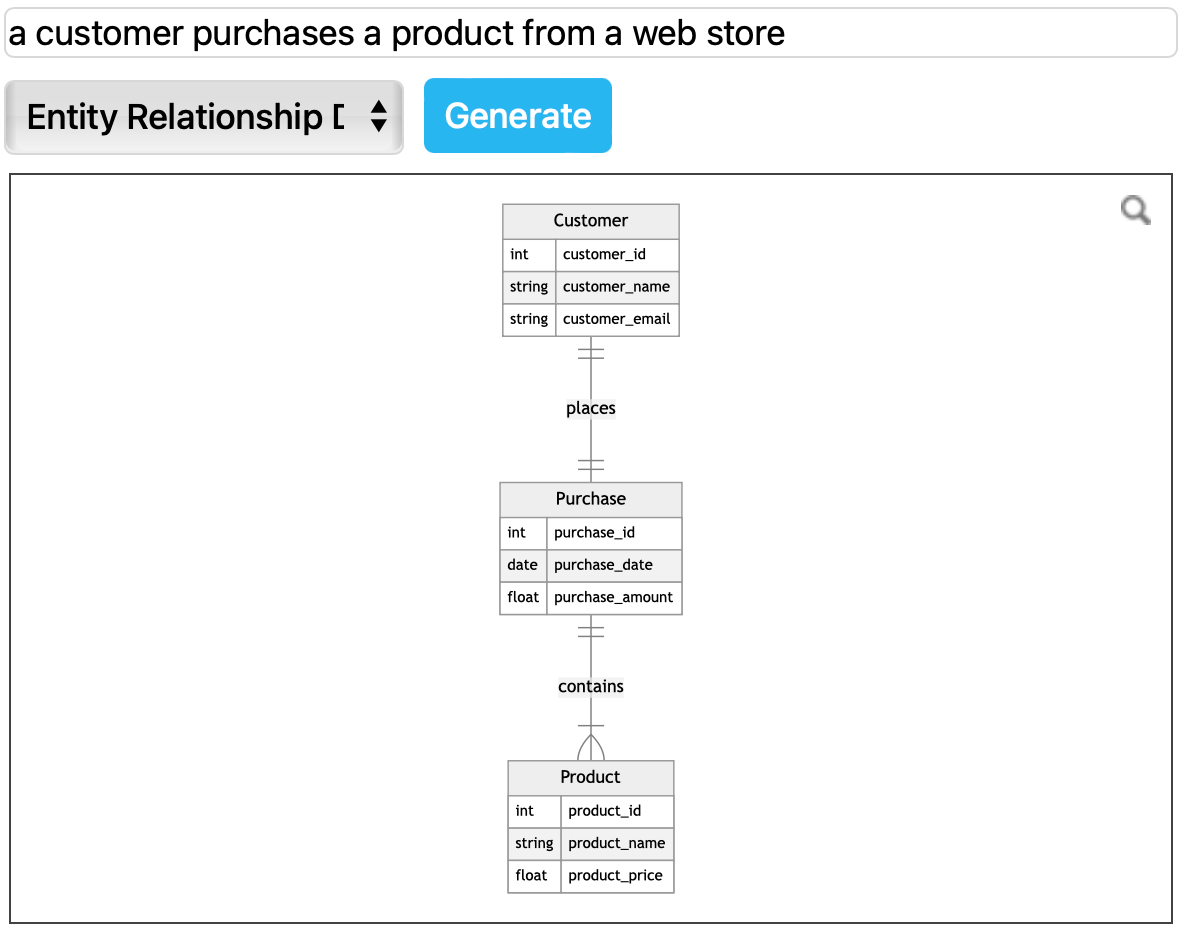
Of course, that phrase won’t generate something useful for certain types of diagrams, like this Gantt chart.
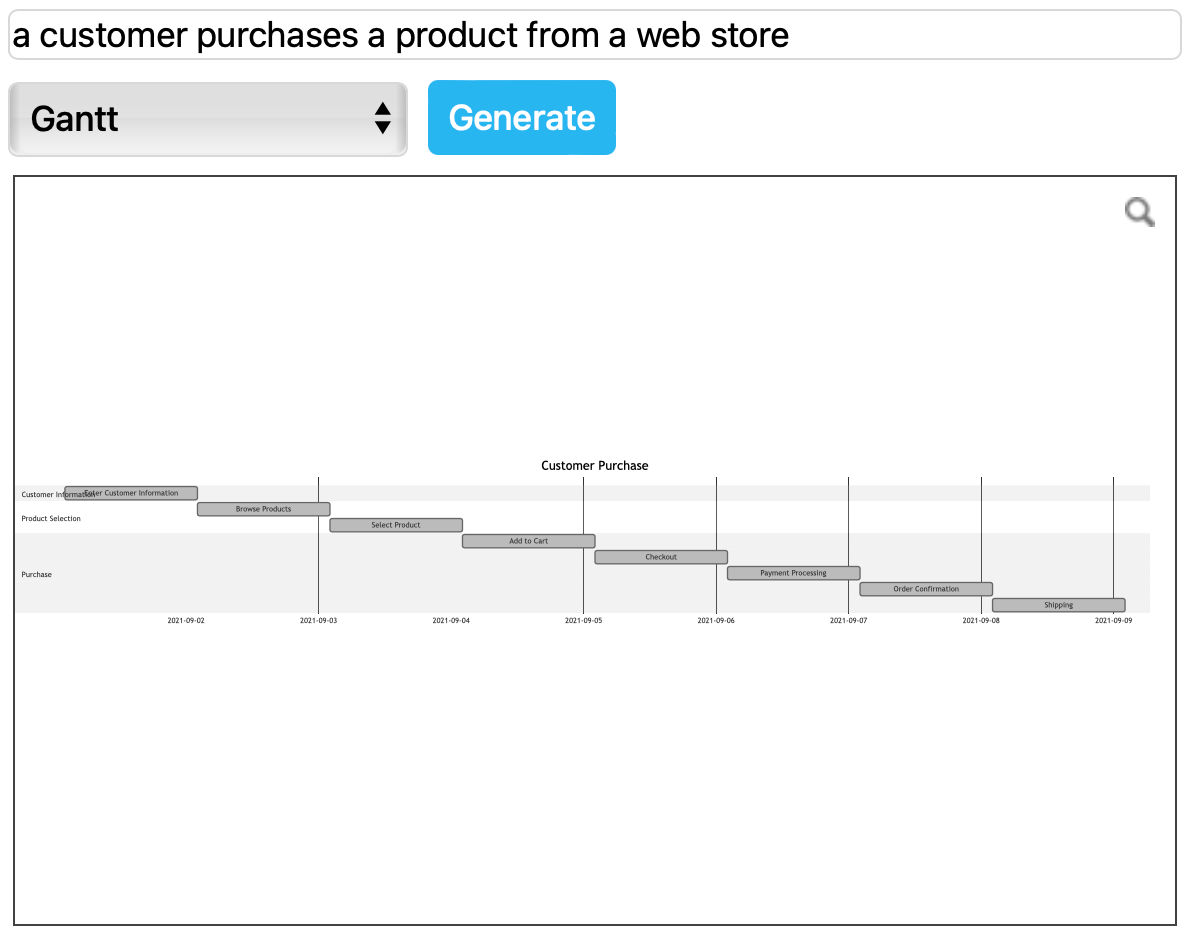
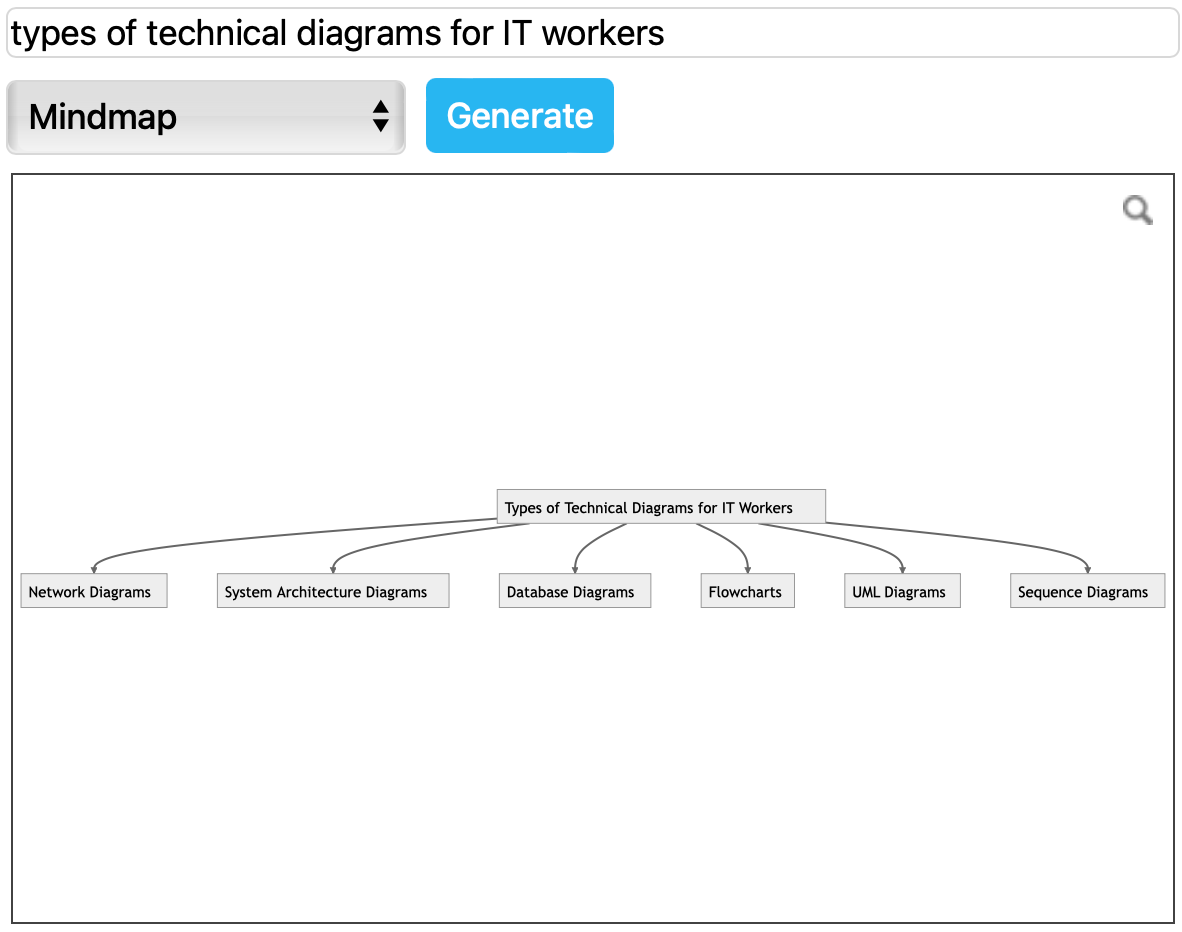
And because the previous phrase makes no sense when describing a mindmap, here’s “types of technical diagrams for IT workers”.
Open all of these generated examples in a multi-page diagram in our diagram viewer
More ways to generate diagrams from text
In draw.io, there are many different ways to generate diagrams automatically from text.
-
Mermaid - all UML diagram types, as well as pie charts, flowcharts, organisation charts, Gantt charts, Sankey diagrams, pie charts and more.
-
Entity diagrams - from SQL code.
-
CSV data into diagrams - with formatting information to create flowcharts, mindmaps, org charts, directed graphs and more.
Troubleshooting generated diagrams
Some diagram types lend themselves more naturally to text descriptions. Flow charts, sequence diagrams and mind maps are easier to generate than git graphs from a text description.
As this tool is not a human and can not know what is logical to include in a diagram, there are no guarantees you will generate a diagram that is fit for purpose.
This feature uses a third party service to parse your phrase, and it can get somewhat overloaded at times.
-
Click Refresh if the Generation dialog process times out.
-
If the keywords in your phrase cannot be adequately parsed to generate a diagram, you may receive an “Diagram not found” error or a basic flowchart template. Try another descriptive phrase and regenerate your diagram.
Generated diagrams in draw.io for Confluence and Jira
Diagram generation features are disabled by default if you are using the draw.io app for Confluence Cloud. Ask your administrator to enable this option in the draw.io configuration.