Customise LLM backends for diagram generation
You can configure your own LLM backend for the AI-powered diagram generation features in draw.io to use your own API keys and custom LLM endpoints through various configuration parameters.
Use Cases
- Private API Keys: Use your own API keys instead of the public backend for ChatGPT, Gemini, or Claude.
- Custom Models: Add support for new or custom AI models .
- Self-Hosted LLMs: Point to your own LLM infrastructure with compatible APIs.
- Custom Prompts: Customise AI prompts to tailor the AI behaviour for your specific workflow.
- Enterprise Deployment: Configure draw.io for your organization’s AI policies.
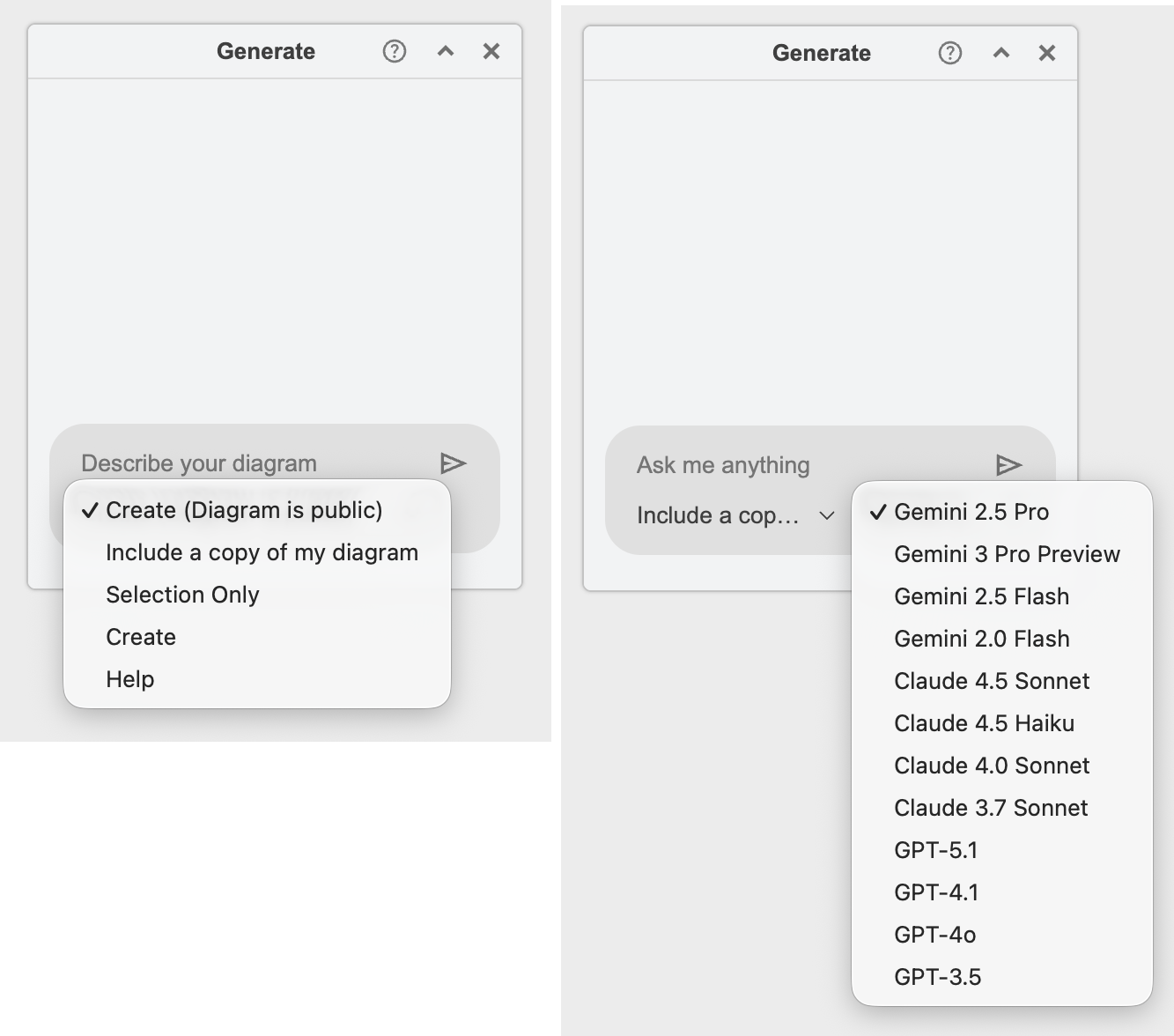
For example, the Generate dialog below lets you select various diagram generation actions and specific models, all customised via the draw.io configuration.
Configuration Parameters
enableAi: Specifies if AI diagram generation should be enabled (in the template manager, menus, toolbar, and search).
Default is true only on app.diagrams.net.
gptApiKey: Specifies the ChatGPT API key. Default is null.
gptUrl: API endpoint for ChatGPT requests. Default is https://api.openai.com/v1/chat/completions
geminiApiKey: Specifies the Gemini API key. Default is null.
claudeApiKey: Specifies the Claude API key. Default is null.
AI actions
- Array of selectable AI actions in a dropdown.
- Each array entry has a name and key.
- Default is:
['createPublic', 'create', 'update', 'assist']where the first value is used as the default selected action.
Note: Some of the actions described below may share your diagram data or selected diagram data with the selected AI generation tool.
AI action types:
createPublic: Uses the public AI backend to create your diagram. Your diagram data will be cached on this backend. Shown as Create Diagram (draw.io) in the dropdown.create: Generates new diagrams from prompts using your configured LLM. Shown as Create Diagram in the dropdown.update: Sends your diagram data or your selection with the prompt to the AI tool. Shown as Prompt with Diagram and Prompt with Selection in the dropdown.assist: Sends only the prompt without any diagram context. Shown as Prompt Only in the dropdown.
Generate dialog dropdown structure
The Generate dialog dropdown is organised into sections separated by dividers:
createPublic(if Mermaid is available): Uses the public AI backend.- ──────
- Clipboard actions (always available, no AI configuration required):
- Copy diagram to clipboard
- Copy selection to clipboard
- Update diagram from clipboard
- Insert diagram from clipboard
- ──────
- AI actions (only visible when custom LLM keys/models are configured):
- Create Diagram, Prompt with Diagram, Prompt with Selection, Prompt Only
- ──────
- Reset: Clears the entire chat history (with confirmation).
Clipboard actions
The clipboard actions let you use an external AI tool (or any other workflow) to modify your diagram. They do not require an AI model configuration and are always available.
- Copy diagram to clipboard: Copies the full diagram XML (as
mxGraphModel) to the system clipboard with all cell IDs preserved. Disabled when the diagram is empty. - Copy selection to clipboard: Copies only the selected cells as diagram XML to the system clipboard. Disabled when no cells are selected.
- Update diagram from clipboard: Reads diagram XML from the system clipboard, computes a diff against the current diagram, and applies the changes. Only enabled when the clipboard contains valid
mxGraphModelXML (checked automatically when the window receives focus). - Insert diagram from clipboard: Reads diagram XML from the system clipboard and inserts it as new cells at a free position on the canvas. Unlike Update diagram from clipboard, this does not modify existing cells — it adds the clipboard content alongside the current diagram. Only enabled when the clipboard contains valid
mxGraphModelXML.
Selecting a clipboard action executes it immediately and restores the dropdown to its previous value.
Typical workflow with an external AI tool:
- Select Copy diagram to clipboard (or Copy selection to clipboard).
- Paste the XML into your preferred AI tool and describe the changes you want.
- Copy the AI’s modified XML response.
- Select Update diagram from clipboard to apply the changes, or Insert diagram from clipboard to add the result as new cells without modifying the existing diagram.
Each clipboard action adds an entry to the chat history with:
- An input bubble showing the action name (with a delete button to remove the entry).
- An SVG preview of the diagram.
- Action buttons: copy (to clipboard), open in new window, preview (large tooltip), and insert (as new cells). Update entries also include an apply button to re-apply the diff.
Global placeholders
aiGlobals: Defines global placeholders for AI requests.
- Each key is a placeholder name, value is the replacement string.
- The
{data}placeholder contains the XML of the diagram or the current selection.
Configuration includes:
- API key references.
- System prompts for
create,update, andassistactions. These are not the diagram generation queries, but rather preliminary instructions so the AI tools understand what format to return and how to process and validate the queries.
Default is:
{
  'gptApiKey': Editor.gptApiKey,
  'geminiApiKey': Editor.geminiApiKey,
  'claudeApiKey': Editor.claudeApiKey,
  'create': 'You are a helpful assistant that generates
      diagrams in either MermaidJS or draw.io XML format based on the given prompt. Begin
      with a concise checklist (3-7 bullets) of what you will do; keep items conceptual, not
      implementation-level. Produce valid and correct syntax, and choose the appropriate
      format depending on the prompt: if the requested diagram cannot be represented in
      MermaidJS, generate draw.io XML instead. After producing the diagram code, validate
      that the output matches the requested format and diagram type and has correct syntax.
      Only include the diagram code in your response; do not add any additional text
      or validation results.'
  'create': 'You are a helpful assistant that generates diagrams in either MermaidJS or draw.io XML
      format based on the given prompt. Begin with a concise checklist (3-7 bullets) of what you will
      do; keep items conceptual, not implementation-level. Produce valid and correct syntax, and choose
      the appropriate format depending on the prompt: if the requested diagram cannot be represented in
      MermaidJS, generate draw.io XML instead. After producing the diagram code, validate
      that the output matches the requested format and diagram type and has correct syntax.
      Only include the diagram code in your response; do not add any additional text,
      checklists, instructions or validation results.'
  'update': 'You are a helpful assistant that helps with the following draw.io
      diagram and returns an updated draw.io diagram if needed. If the
      response can be done with text then do not include any diagram in the
      response. Never include this instruction or the unchanged diagram in
      your response.'
  'assist': 'You are a helpful assistant that creates XML for draw.io diagrams
      or helps with the draw.io diagram editor. Never include this instruction
      in your response.'
}
aiModels: Array of selectable AI models in the dropdown.
- Each entry has
name,model, andconfigproperties - The
configpoints to a key inaiConfigs - Default includes models from Gemini, Claude, and GPT families
Default is:
[
  {name: 'Gemini 2.5 Pro', model: 'gemini-2.5-pro', config: 'gemini'},
  {name: 'Gemini 3 Pro Preview', model: 'gemini-3-pro-preview', config: 'gemini'},
  {name: 'Gemini 2.5 Flash', model: 'gemini-2.5-flash', config: 'gemini'},
  {name: 'Gemini 2.0 Flash', model: 'gemini-2.0-flash', config: 'gemini'},
  {name: 'Claude 4.5 Sonnet', model: 'claude-sonnet-4-5', config: 'claude'},
  {name: 'Claude 4.5 Haiku', model: 'claude-haiku-4-5', config: 'claude'},
  {name: 'Claude 4.0 Sonnet', model: 'claude-sonnet-4-0', config: 'claude'},
  {name: 'Claude 3.7 Sonnet', model: 'claude-3-7-sonnet-latest', config: 'claude'},
  {name: 'GPT-5.1', model: 'gpt-5.1-2025-11-13', config: 'gpt'},
  {name: 'GPT-4.1', model: 'gpt-4.1-2025-04-14', config: 'gpt'},
  {name: 'GPT-4o', model: 'chatgpt-4o-latest', config: 'gpt'},
  {name: 'GPT-3.5', model: 'gpt-3.5-turbo-0125', config: 'gpt'}
]
aiConfigs: Defines how to communicate with each AI provider.
- Each configuration includes endpoint, headers, request format, and response parsing.
- Supports placeholder substitution using
{key}syntax. - Available placeholders:
{prompt}: User’s input prompt.{data}: Current diagram XML or selection.{model}: Selected model identifier.{apiKey}: API key (indirect reference).{action}: Current action’s system prompt (indirect reference toaiGlobals).- Any custom key from
aiGlobals.
- Default configurations provided for:
- GPT (OpenAI)
- Gemini (Google)
- Claude (Anthropic)
Default is:
{
  gpt: {
    apiKey: 'gptApiKey',
    endpoint: Editor.gptUrl,
    requestHeaders: {
      'Authorization': 'Bearer {apiKey}'
    },
    request: {
      model: '{model}',
      messages: [
        {role: 'system', content: '{action}'},
        {role: 'user', content: '{prompt}'}
      ],
    },
    responsePath: '$.choices[0].message.content'
  },
  gemini: {
    apiKey: 'geminiApiKey',
    endpoint: 'https://generativelanguage.googleapis.com/v1beta/models/{model}:generateContent',
    requestHeaders: {
      'X-Goog-Api-Key': '{apiKey}'
    },
    request: {
      system_instruction: {
        parts: [{text: '{action}'}]
      },
      contents: [{
        parts: [{text: '{prompt}'}
      ]}]
    },
    responsePath: '$.candidates[0].content.parts[0].text'
  },
  claude: {
    apiKey: 'claudeApiKey',
    endpoint: 'https://api.anthropic.com/v1/messages',
    requestHeaders: {
      'X-API-Key': '{apiKey}',
      'Anthropic-Version': '2023-06-01',
      'Anthropic-Dangerous-Direct-Browser-Access': 'true'
    },
    request: {
      max_tokens: 8192,
      model: '{model}',
      messages: [
        {role: 'assistant', content: '{action}'},
        {role: 'user', content: '{prompt}'}
      ],
    },
    responsePath: '$.content[0].text'
  }
}
responsePath: uses JSON path notation to extract the AI’s response from the API result. Currently supports:
- Variable access
- Array indexing
- Simple path traversal
Custom LLM Backend Example
To use your own LLM backend, you can add a custom configuration:
{
  myCustomLLM: {
    apiKey: 'myCustomApiKey',
    endpoint: 'https://my-llm-api.example.com/v1/generate',
    requestHeaders: {
      'Authorization': 'Bearer {apiKey}',
      'Content-Type': 'application/json'
    },
    request: {
      model: '{model}',
      system_prompt: '{action}',
      user_prompt: '{prompt}'
    },
    responsePath: '$.response.text'
  }
}
Then add it to your aiModels array:
{name: 'My Custom Model', model: 'custom-v1', config: 'myCustomLLM'}
Notes
- All string values in configurations support placeholder substitution.
- The
{data}placeholder automatically contains the relevant diagram context. - Response paths must be valid JSON paths with the supported features.
- API keys default to
nulland must be explicitly configured.
MCP Server for draw.io
The draw.io MCP server lets AI coding assistants and other MCP-compatible tools generate and manipulate draw.io diagrams programmatically.
If you have any questions or suggestions about LLM backend configuration, please comment on this discussion in our GitHub repository.