Draw technical diagrams securely offline with draw.io Desktop
If you have an intermittent or restricted internet connection or want to draw diagrams without worrying about whether they will be scraped by cloud storage providers, you can use the draw.io Desktop. With the full set of draw.io shapes. templates and diagramming features, the draw.io Desktop app works offline on Windows, Linux and macOS.
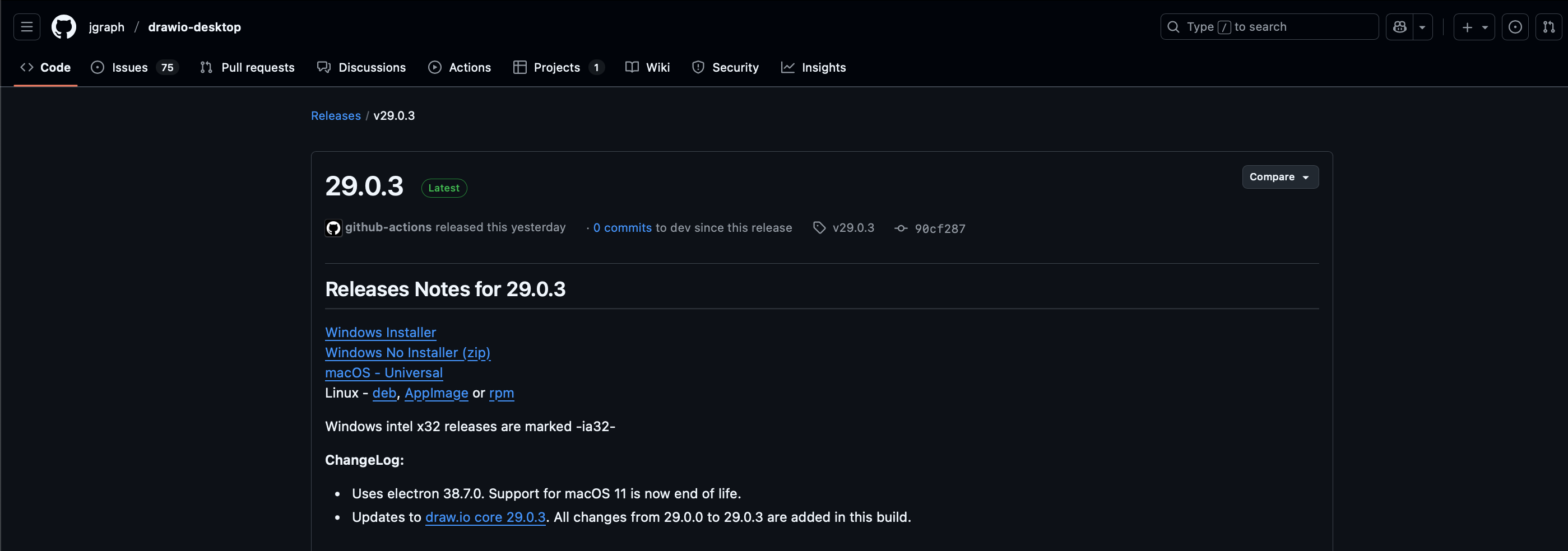
Download draw.io Desktop from our GitHub repository - click on the link for your preferred operating system and installer.
Secure diagramming in the age of AI
Recently, many digital and cloud platforms have updated their terms of service to allow for content scraping - they want to ingest all the stored content to train their search, query parsing and content generation algorithms and agents.
To keep your diagram data secure and private, you may need to prevent this ingestion. The safest way is to draw your technical diagrams in a fully offline application - one that does not need the internet.
draw.io is serious about data security. Since version 10.7.5, draw.io Desktop has always run completely isolated from the internet - you get full data protection for your diagrams without sacrificing editor functionality.
The same diagramming features as the online version
Using the same tool both securely offline and integrated into your workplace’s preferred content platform - whether that be Atlassian, Notion or stored in Google Drive or One Drive - helps you diagram faster as you know how the editor works.
Shape libraries: All the shape libraries are included in the draw.io desktop app, so you can draw the full range of technical diagram, just like you can in the online version of the app. Only the extended Clipart search library is not included, as these are not built into the draw.io editor.
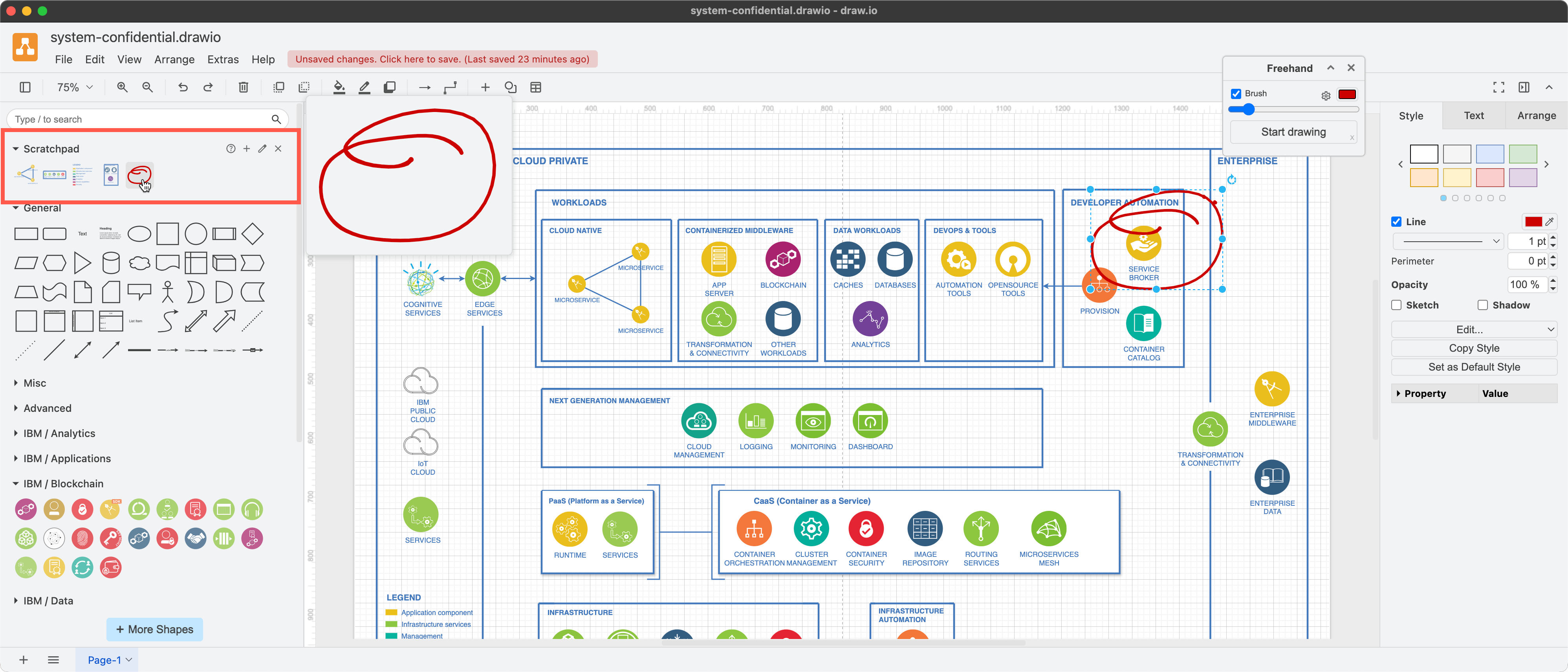
Draw custom shapes, change the attachment points on existing shapes, or save freehand shapes in draw.io Desktop via the scratchpad to a custom shape library file on your local device.
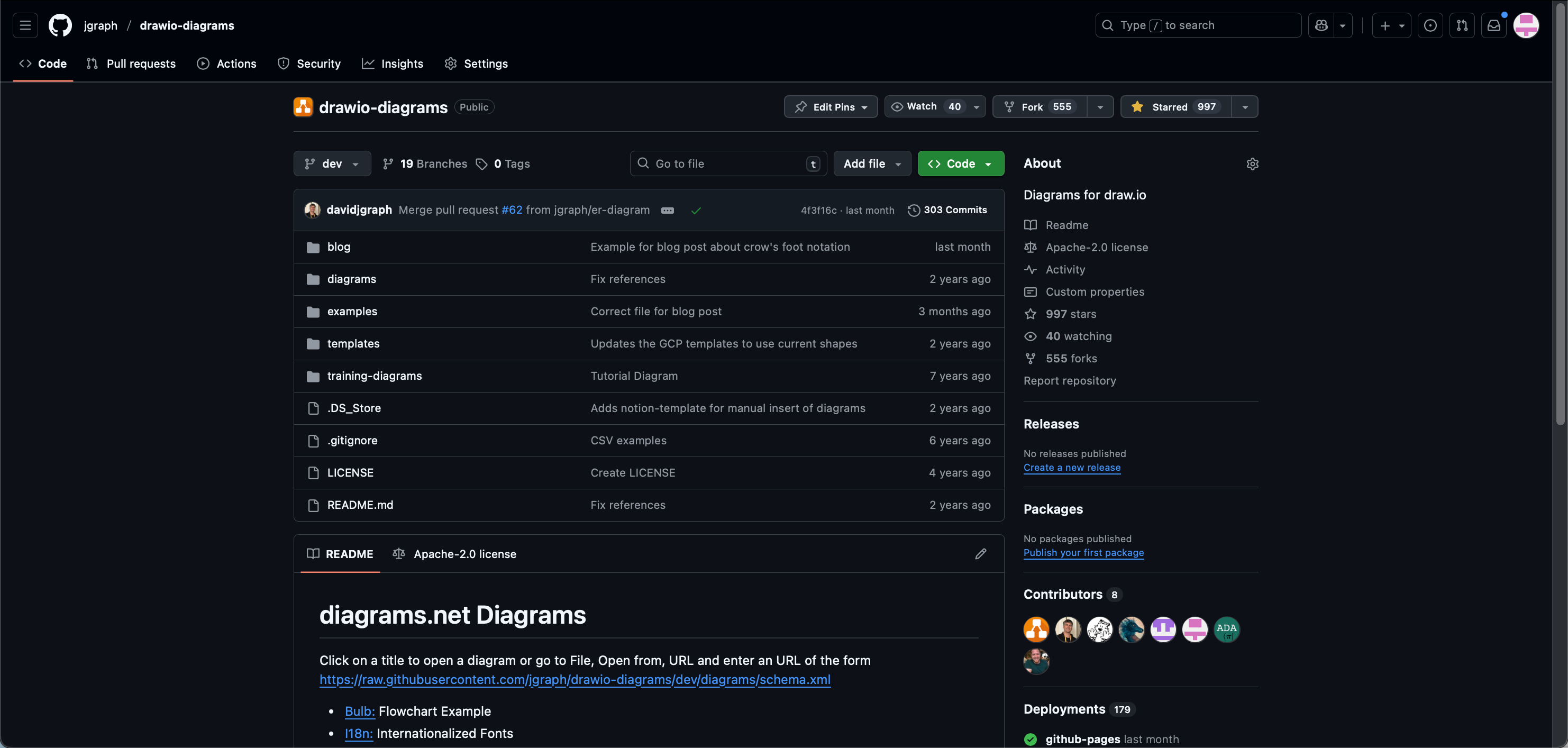
Built-in templates: The default templates in the online draw.io app are also available in the offline draw.io Desktop app (Arrange > Insert > Template). To use additional templates and example diagrams from our GitHub repository, or your team’s custom templates, download them separately and then drop a file into the draw.io editor to import it as the import from URL option is not available in draw.io Desktop.
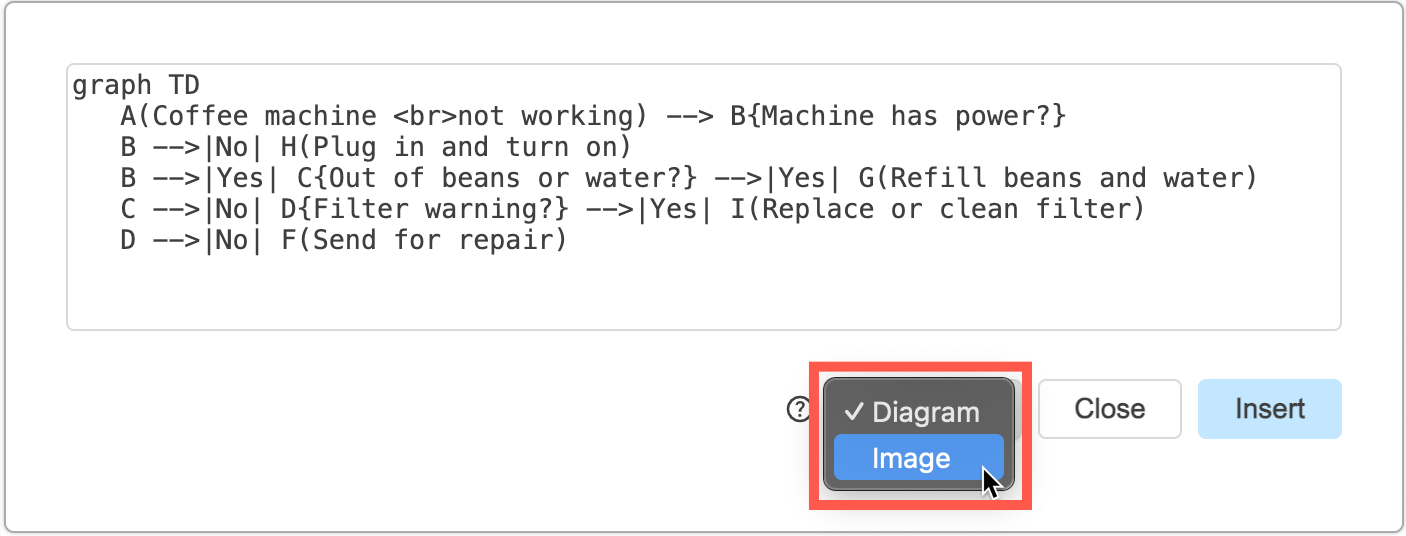
Mermaid text-to-diagram conversion: The Mermaid to diagram conversion runs client-side, and therefore works offline in draw.io Desktop. Select Arrange > Insert > Mermaid in the Classic editor theme, or + > Mermaid in the Simple editor theme to open a dialog to enter your Mermaid code. Choose Diagram to use native draw.io shapes, or Image to be able to re-edit the Mermaid code.
Editor themes and dark mode: Atlas, Classic, Simple, Minimal and Sketch editor themes are all available in draw.io Desktop (Extras > Theme), as are Dark and Light modes (Extras > Appearance). In all draw.io editors, you can define fill, line, text and gradient colours separately for dark and light mode.
For editor themes that greatly change the tool layout, close and restart the application.
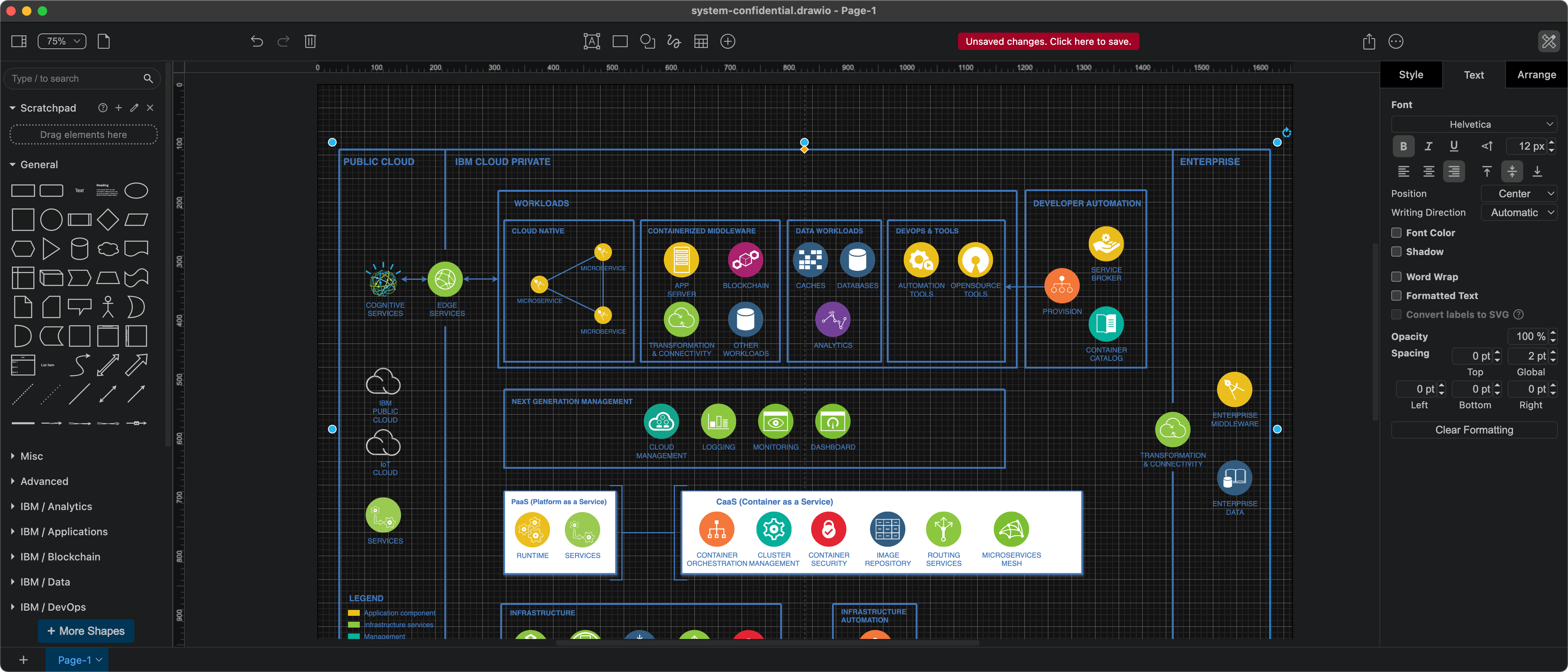
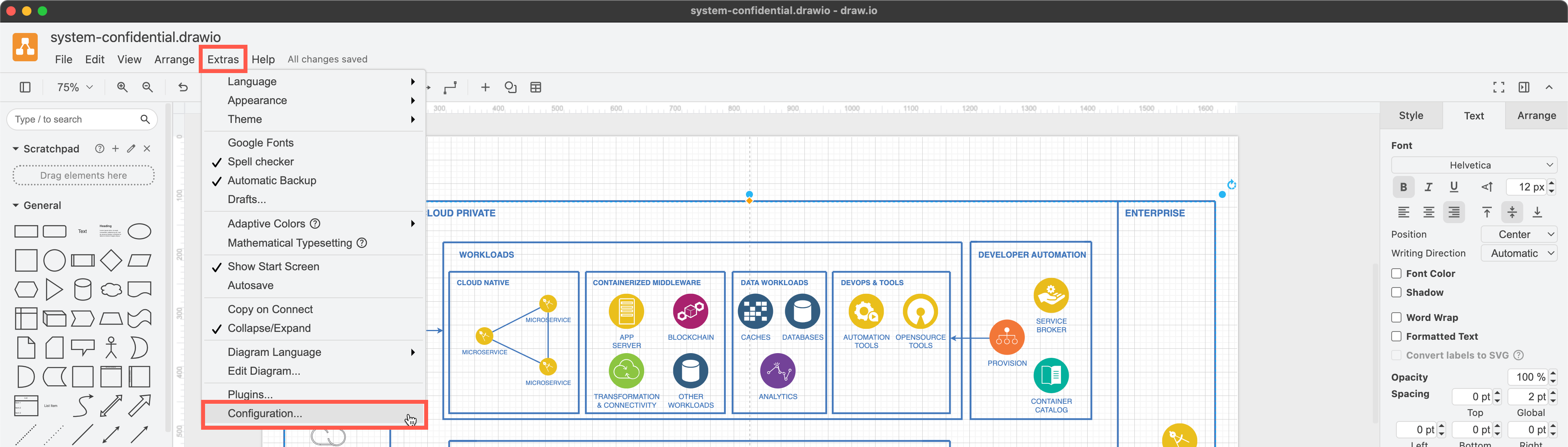
Diagram editor configuration: If you want to use certain fonts, styles, or need to load custom libraries by default, select Extras > Configuration from the draw.io Desktop menu (Classic theme). You can configure the desktop app just like you can the online and Atlassian draw.io editors.
See all configuration options for draw.io
Download separately
Smart templates: The smart templates feature is not available in draw.io Desktop, as it needs to call OpenAI to parse your query and generate the diagram.
Web fonts: To use web or Google fonts (.woff files) with the draw.io Desktop app, please download them and install them in your system.
.vsdx import: As this conversion cannot be performed on the client side, please convert these files in the online draw.io app and save them to a .drawio or .xml file. You can then open this converted file in draw.io Desktop.
Related
Diagram offline on a mobile device: If you don’t want to install a separate application for draw.io or if you are using a mobile device, you can open the online editor at app.diagrams.net to load all of the tools and features into your browser. Then take your system offline and continue to work on your diagram. As a progressive web app that runs in your browser, draw.io is a useful option if you are on a mobile device with an unreliable net connection.
Note: Save the diagram files to your browser or to your local device - cloud storage options are obviously not available without an internet connection.
Run your own draw.io server: Set up your own diagramming server inside your secure infrastructure with our air-gapped Docker image of draw.io.