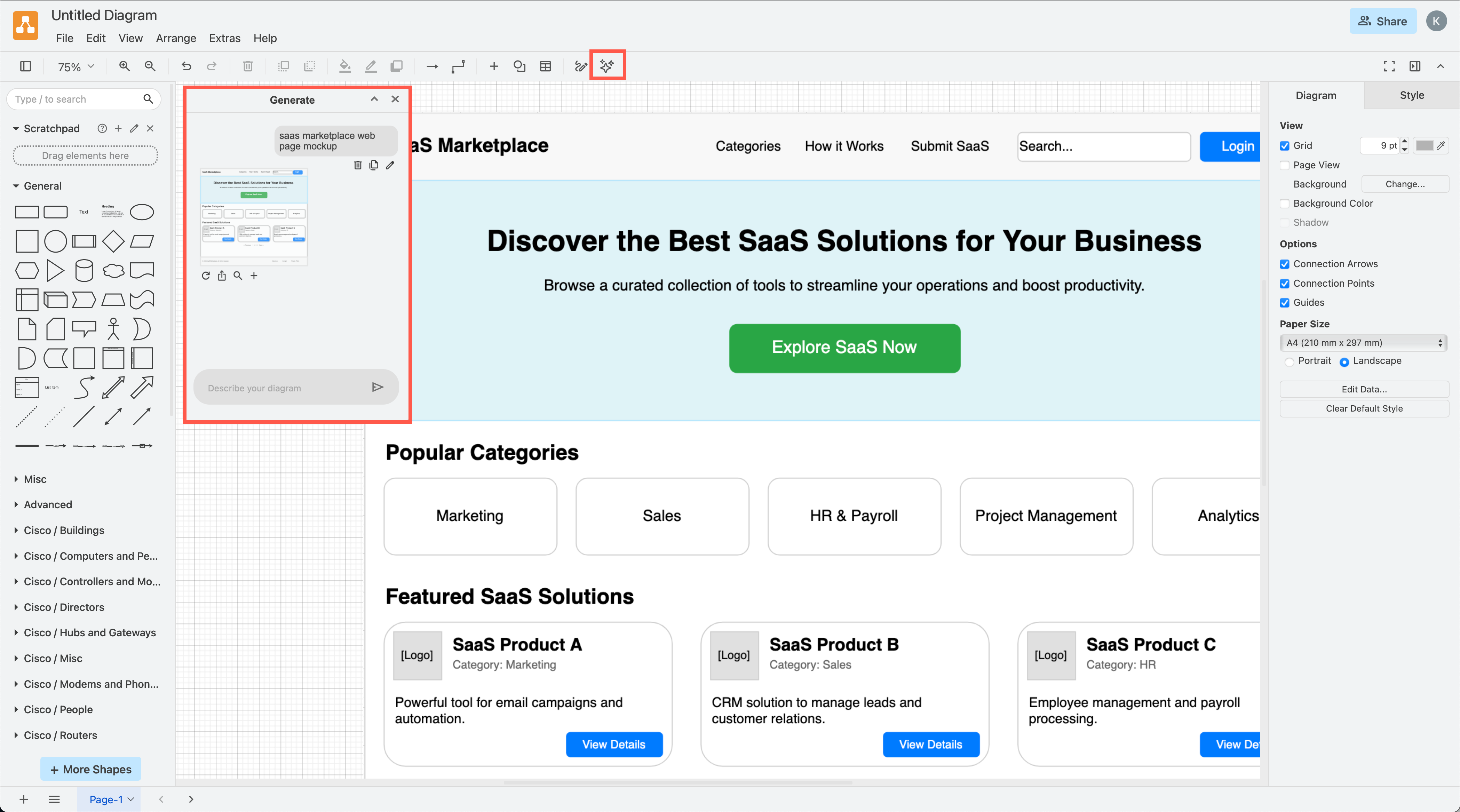
Generate more types of diagrams in draw.io with the new sparkle tool
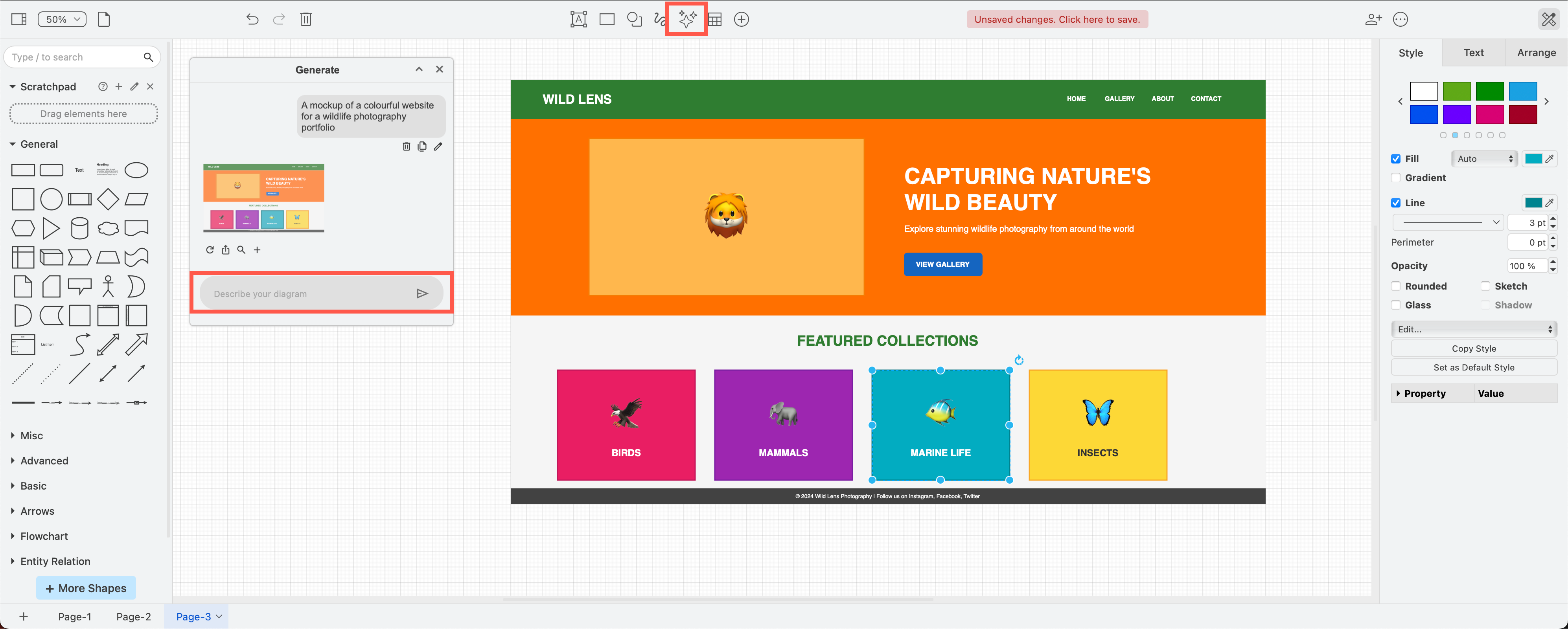
The smart templates feature has been upgraded - click on the new Generate tool (sparkle button) in the draw.io toolbar to generate a diagram. The Generate tool uses multiple AI generators to support a wider range of diagrams, including interface mock-ups, infrastructure diagrams, Mermaid diagrams and more.
Tips:
- The Generate tool is available in all the draw.io editor themes that have a toolbar - Classic, Atlas, Simple and Sketch - in the Atlassian draw.io apps and our online editor.
- While you can still generate a diagram from within the template library as a smart template, you can also edit queries via the Generate tool.
Generate a diagram
Make sure you write the type of diagram you want at the start of the query - this is what decides which AI generator is chosen, as each generator is good at only a small subset of diagrams.
- Open the Generate dialog - click on the sparkle button.

- Describe the diagram you want to generate, then press
Enteror click on Send.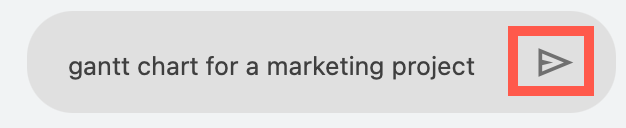
- Your query will be sent to the AI tools to analyse and generate a preview of a diagram - this may take a little time. If the result doesn’t match your query, click Refresh to regenerate a different version - keep in mind that AI tools may not return sensible results.
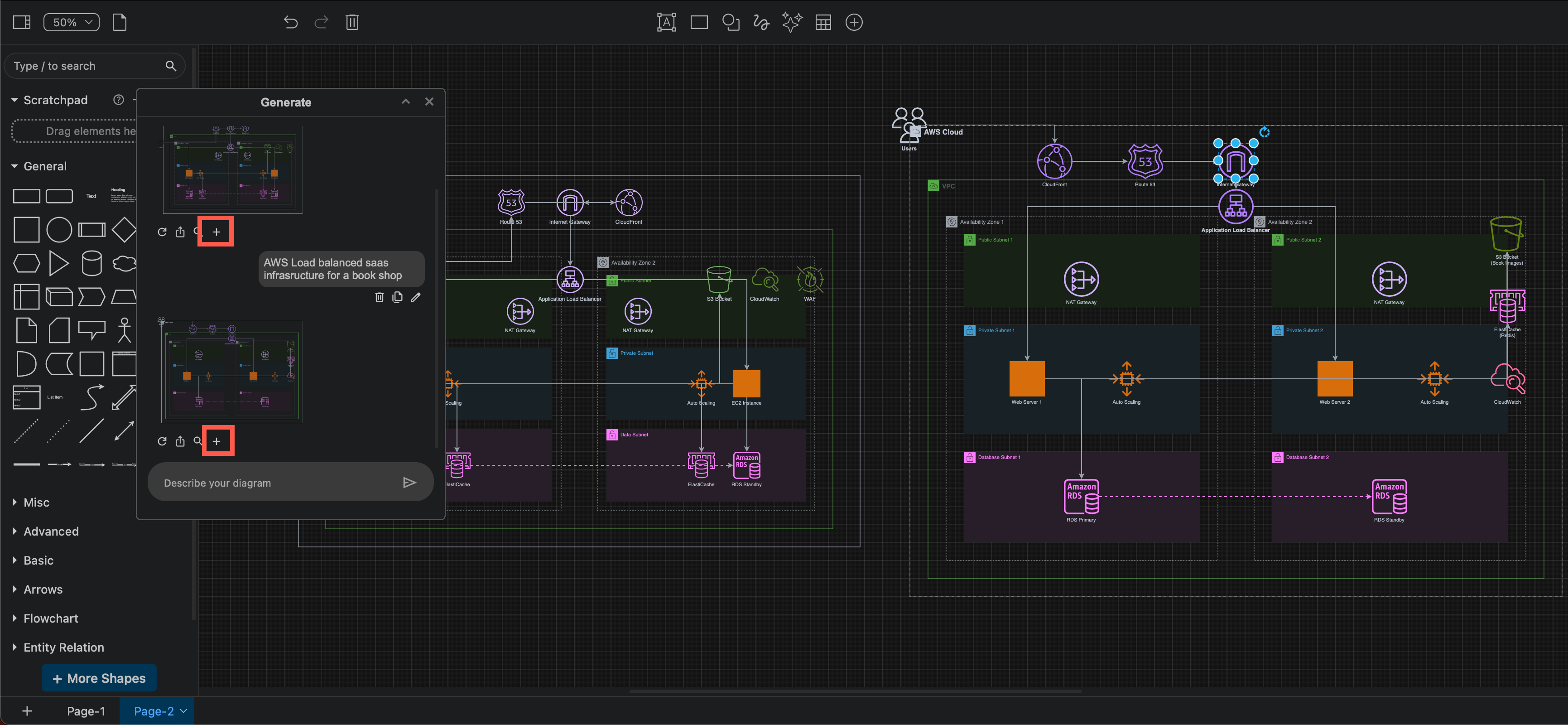
- Click + to add the diagram to the drawing canvas.
- Online draw.io editor only: To open the diagram in a new browser tab and new diagram instead of inserting it on the current diagram page click on Open in New Window.
The colours in generated diagrams may not be optimised for draw.io’s adaptive colour feature. You may need to tweak shape and diagram styles after inserting the generated diagram on the drawing canvas. In the example below, the generated diagram was much easier to see in dark mode.
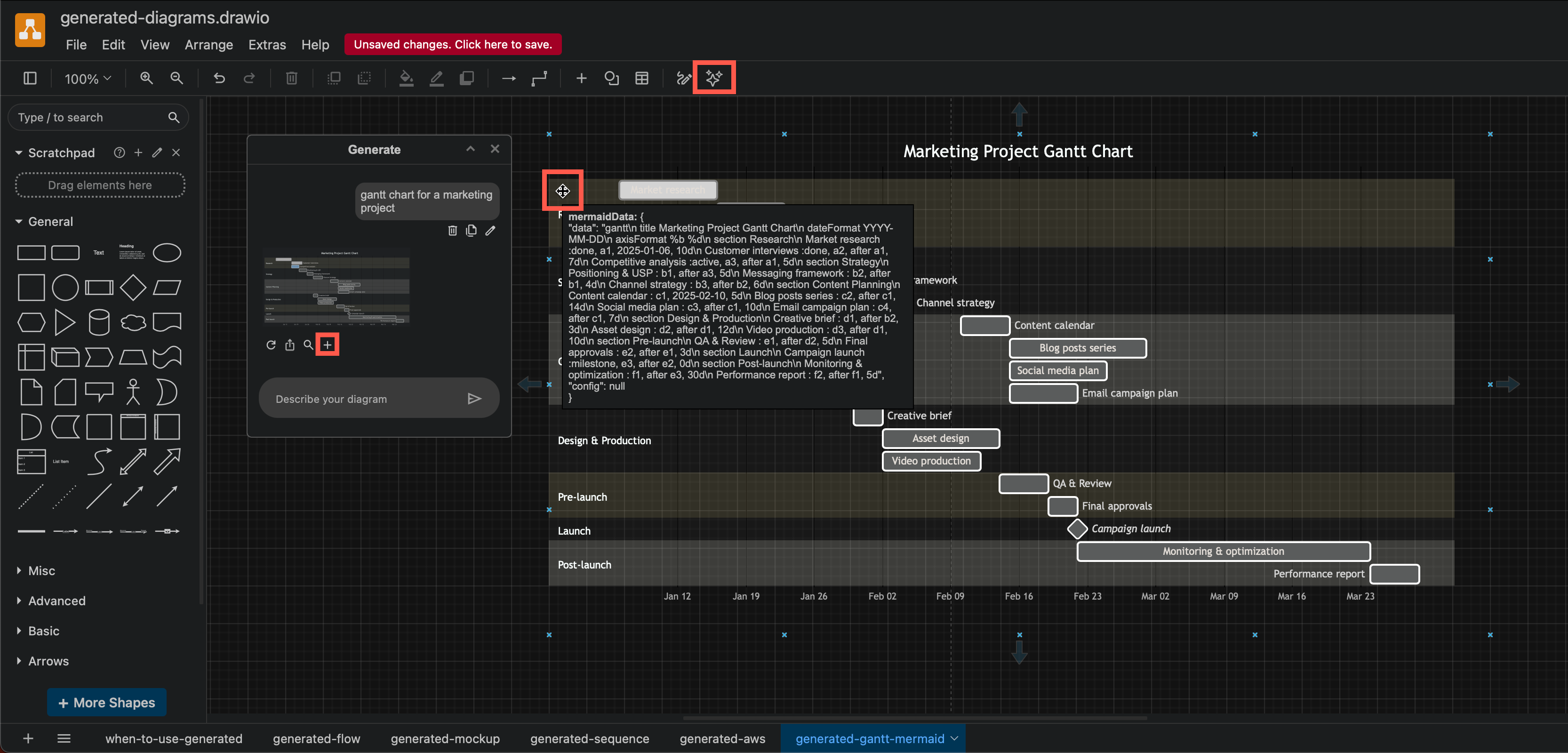
Some diagrams, like the Gantt chart above, will be generated in Mermaid code instead of being converted to native draw.io shapes. Hover over the diagram on the drawing canvas to see this Mermaid code, and double click on it to edit it.
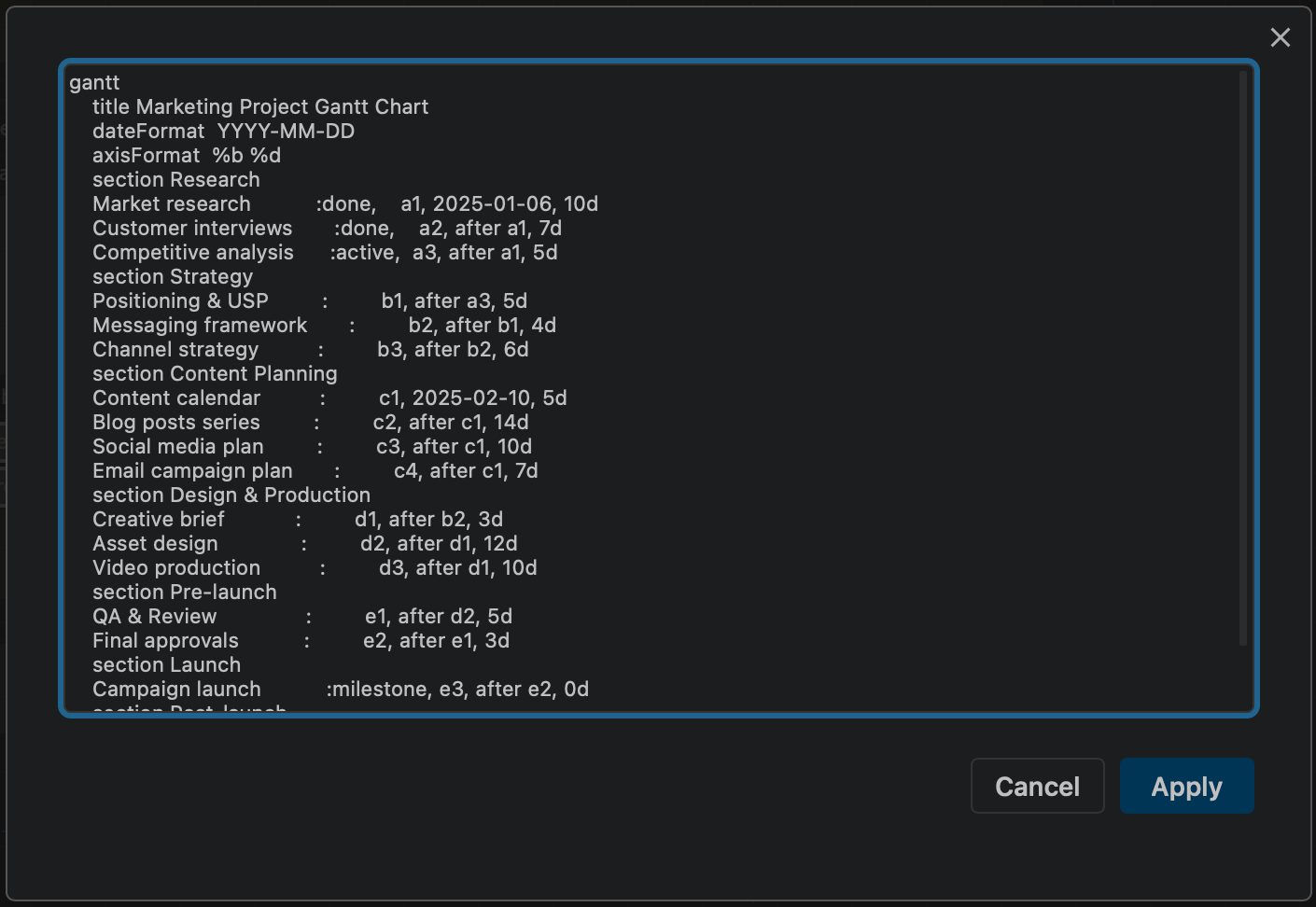
Tip: If you want to the generator to use Mermaid, make sure you write that in your query, either before or directly after the diagram type.
Preview the generated diagram
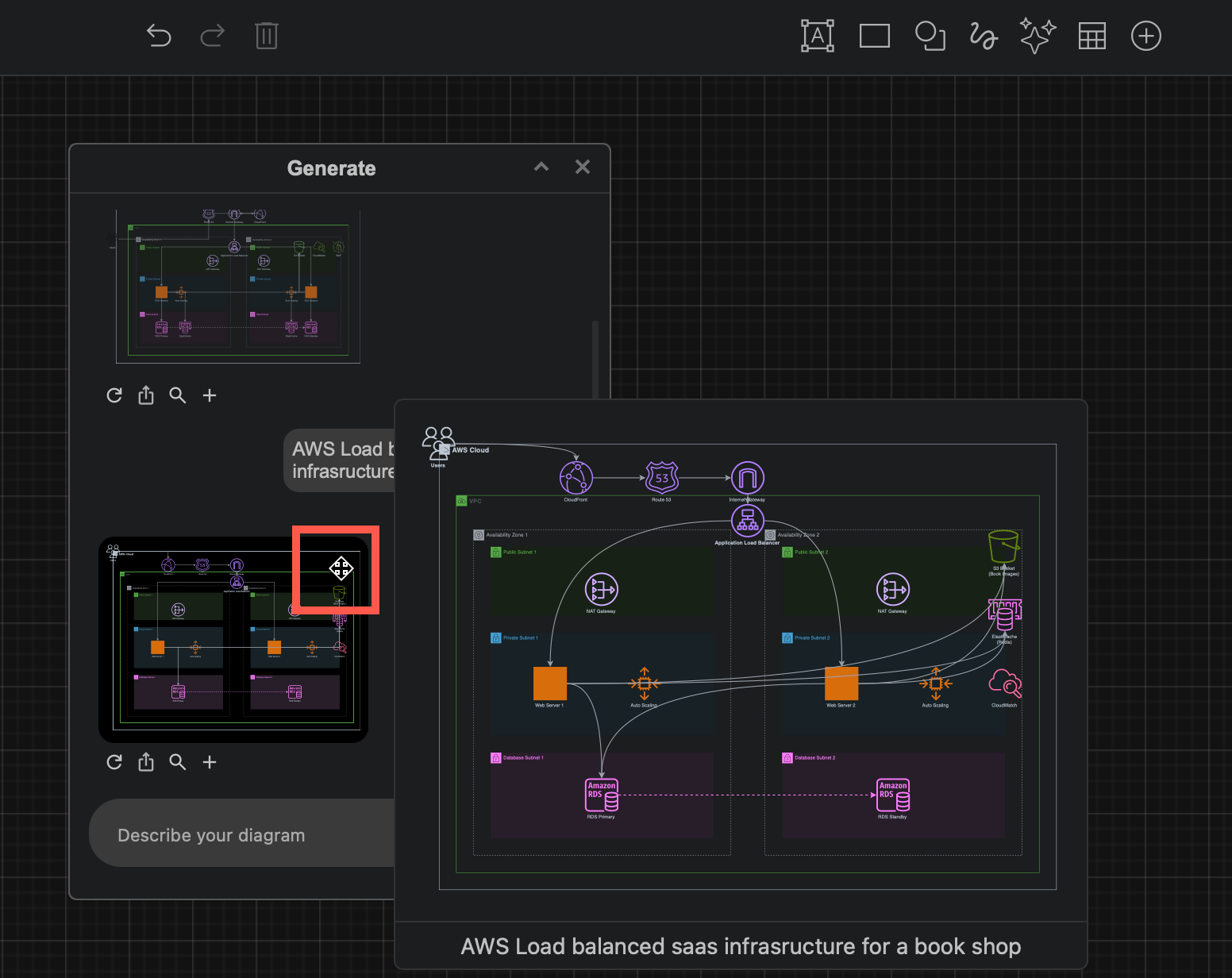
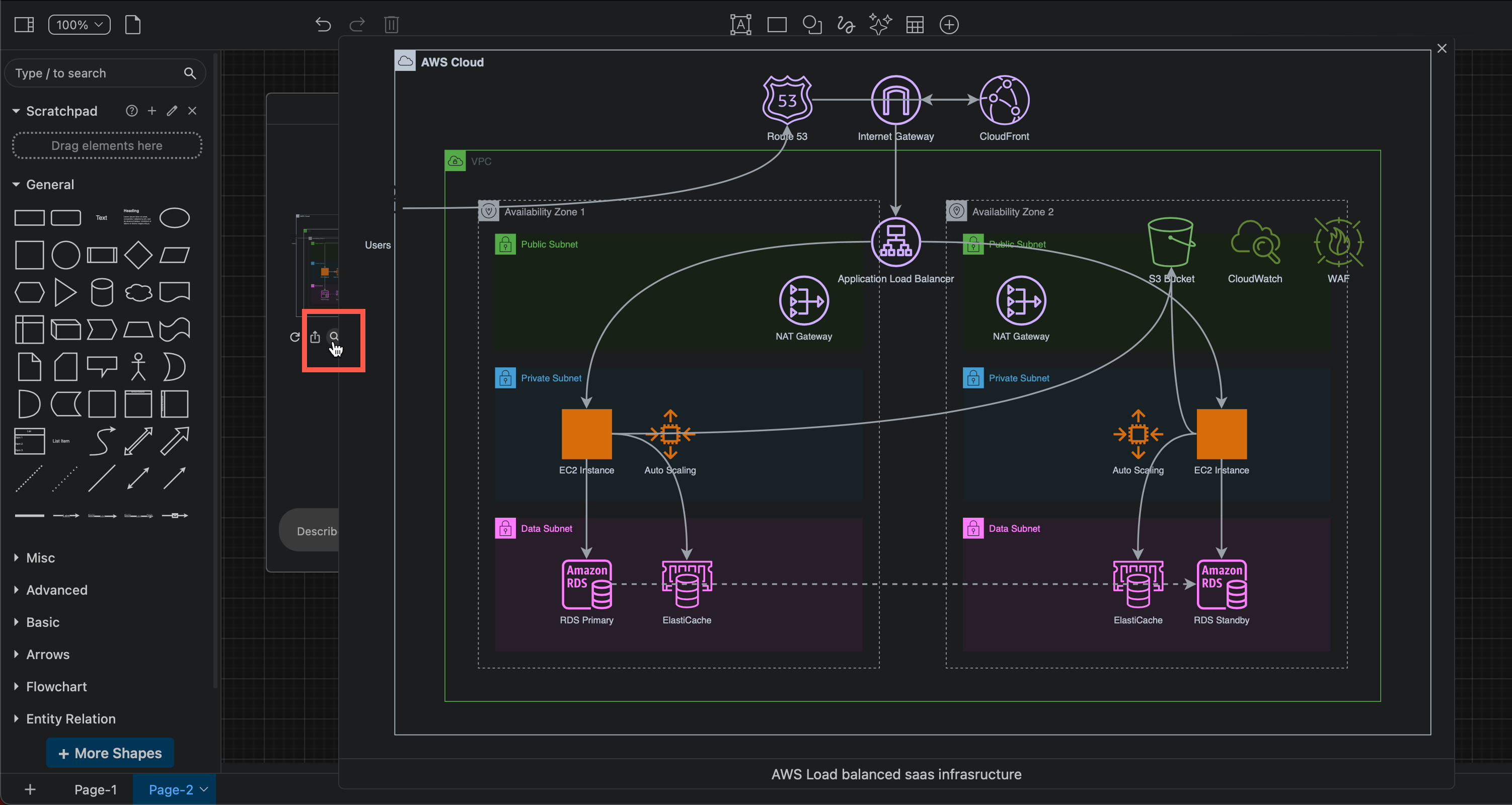
While you can hover over the diagram for a small preview, to see a larger preview, click on the Preview magnifying class.
Edit your query
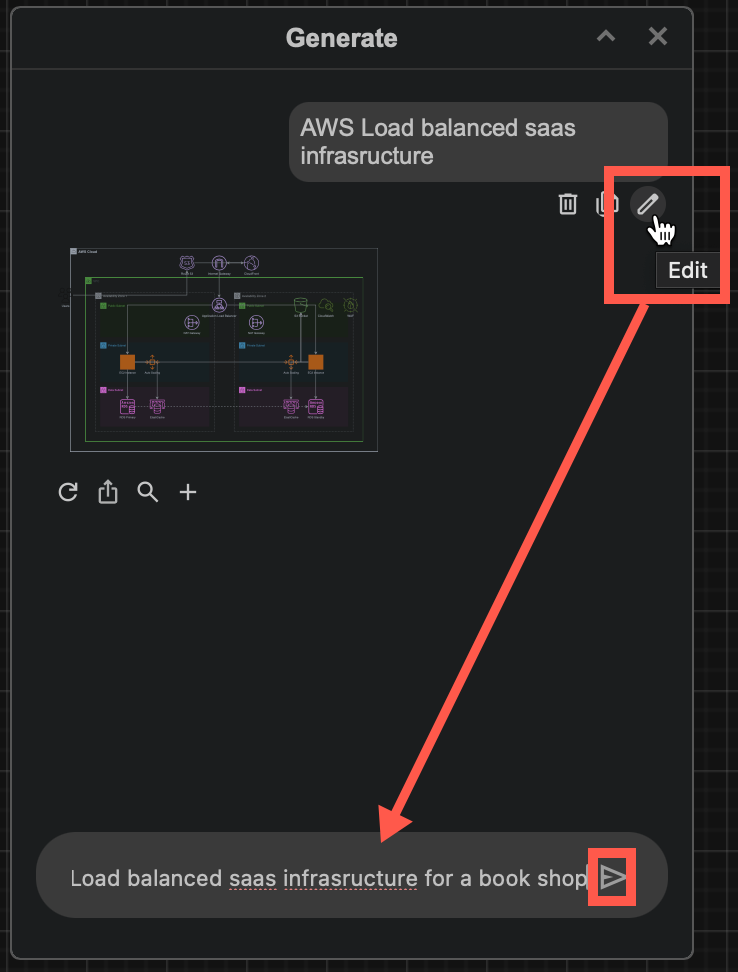
- Click on Edit (pen icon) to paste that query text in the description box.
- Refine the query and click Send to generate an updated diagram.
The edited queries do not overwrite the earlier generated diagrams - you can add any or all of these to the diagram canvas.
Tip: To copy just the text of your query, click the copy icon next to the pen.
Delete a query
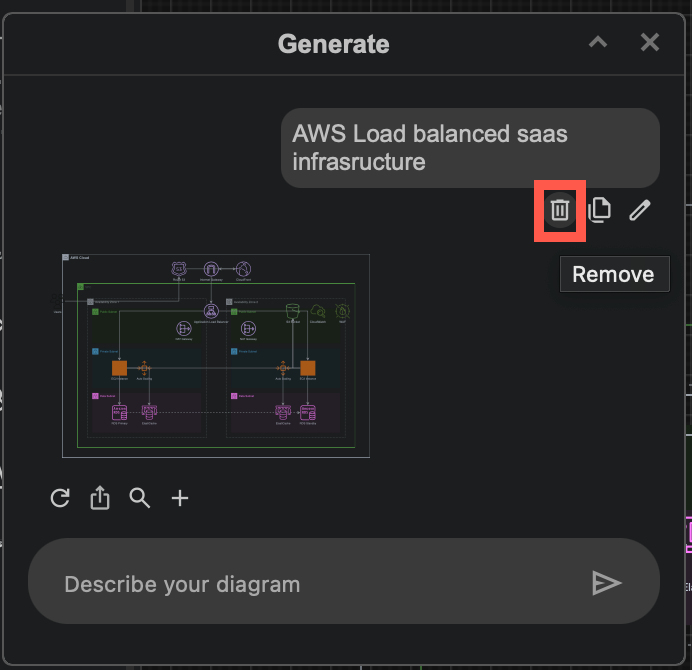
- Click Remove (rubbish bin) to delete a query from the Generate dialog.
- To clear the dialog complete, remove all queries.
Related
Learn about when it makes sense to generate diagrams and how to write better queries for more accurate diagram generation.
For Atlassian administrators: enable smart templates in draw.io for Confluence Cloud.
To disable this feature completely, hide the sparkle button and menu items, set "enableAi": false in the draw.io app configuration. There are many diagram generation options you can customise in the draw.io configuration.
See more examples of smart templates and generated diagrams.